Chrome extension · ·
Markdown web clipper: save a web page you do not have to clean up
Clean Web Clipper is a free Chrome extension that saves a web page as clean Markdown – to the clipboard, a .md file or an Obsidian vault. No account; the page text never leaves your browser. Tested as a Markdown web clipper on 512 pages from the most-visited sites in August 2026: no crashes, no leftover HTML tags.
The 512 pages come from two runs on live sites. On 30 August 2026, 109 pages from the hundred most-visited sites in the world and in Russia went through Clean Web Clipper and three other engines head-to-head – Defuddle 0.19.3, Mozilla Readability 0.6.0 and MarkSnip 5.2.0: 102 duplicated menu lines against 282–491 for the others. On 31 August 2026, 403 more pages from the top fifty sites of 11 European countries and Brazil ran through our core alone. The benchmark gives every number, the engine versions and where it is behind.
How do I save a web page as Markdown in Chrome?
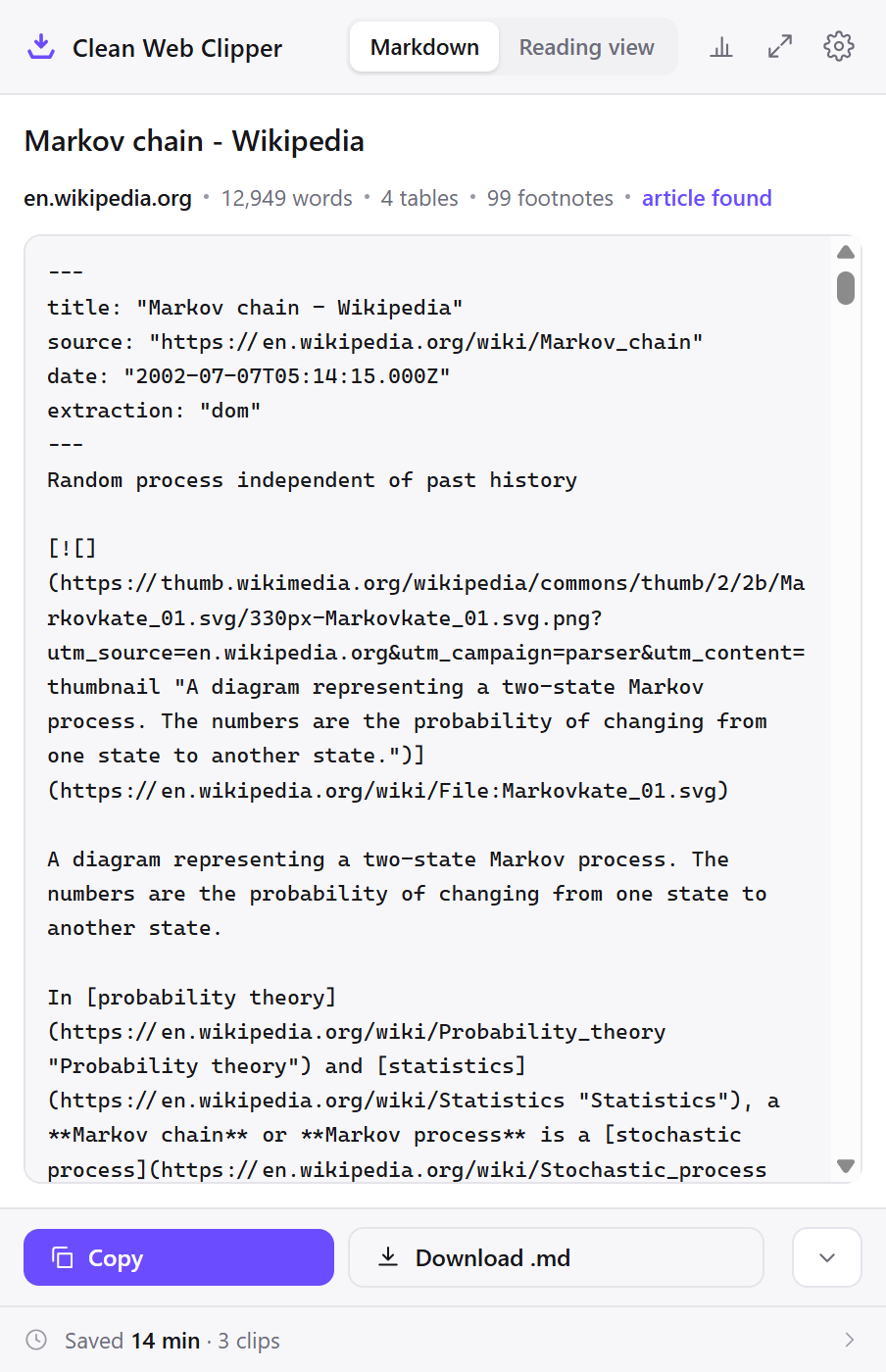
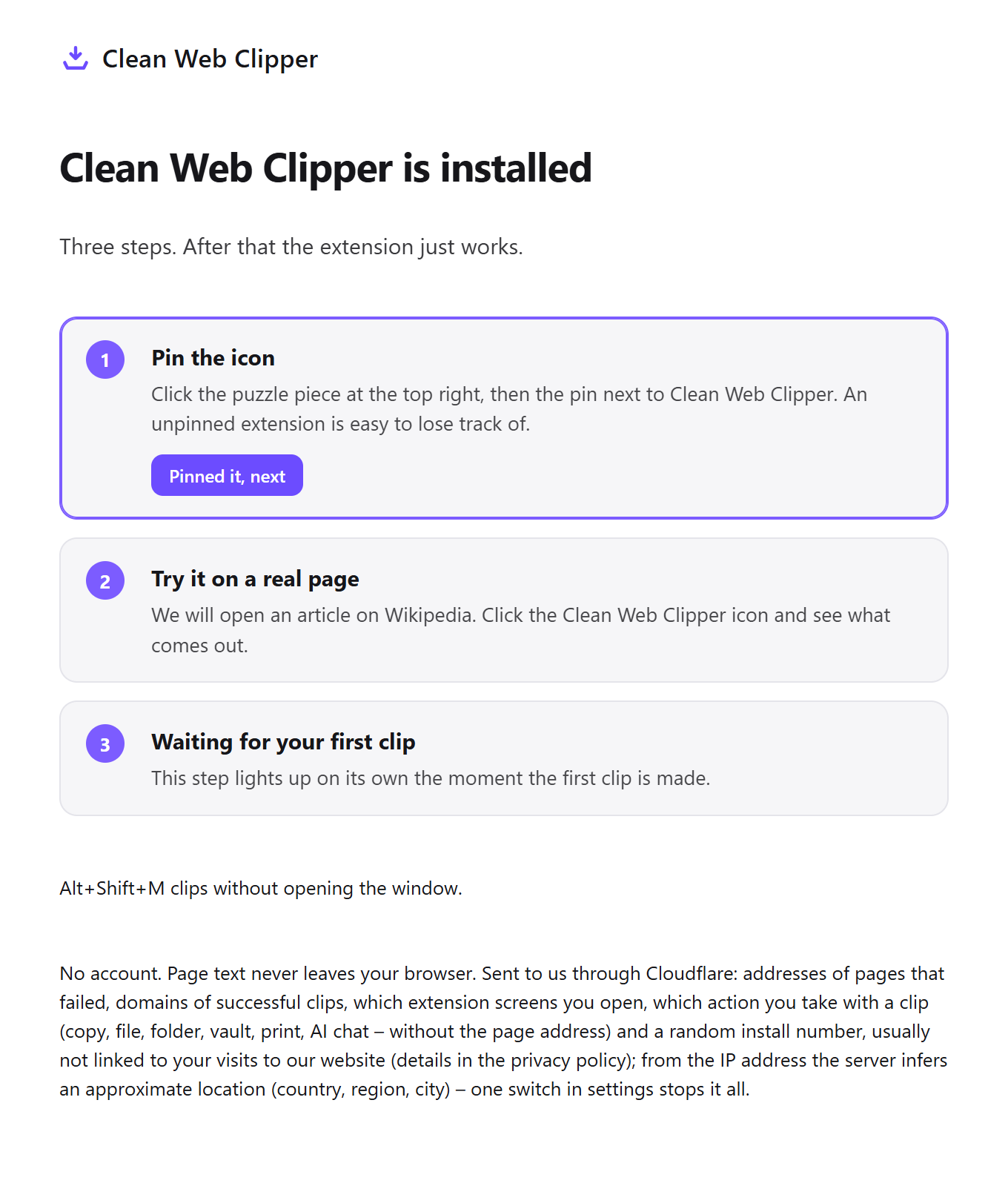
Add Clean Web Clipper to Chrome, then take three steps: pin the Clean Web Clipper icon to the toolbar, open the article, and click the icon. The Markdown appears in a preview window, ready to copy or to save as a .md file. Clean Web Clipper is free and needs no account and no setup.
Pin the icon
Open the puzzle-piece menu next to the address bar and pin Clean Web Clipper to the toolbar, so the icon stays one click away. Nothing has to be configured first: by default a click opens a preview with the Markdown already made, and the settings can wait until you know what you want.
Open the article
Open the article you want to keep – the article itself, not a page of links to it. A feed, a storefront or a search result has no article to extract; the extension often recognises such a page and answers “no article” instead of saving a page of menu links, though many feeds still come out as a list of headlines. On a page that is still drawing itself, wait for the text to appear first.
Click the icon
The Markdown appears in the preview window with title, author, date and source in the frontmatter: copy it, or save the .md file. A line of facts under it says how many words, tables and footnotes came across and whether an article was found at all. To keep only one passage, select it on the page before you click the icon. Later you can make a single click write the note straight into a folder or your Obsidian vault and skip the preview altogether.
Get a note mostly free of menus, banners and broken tables
- Code keeps its language when the page declares it. You get a fence tagged
js, not a bare one, so highlighting works the moment you paste. - Tables come out as Markdown tables. A cell holding code or a list no longer breaks the row; a small uneven two-column table becomes
**key**: valuelines. - Footnotes actually work. Reference links become
[^1]with definitions at the end of the note, not dead anchors. - Dates are read, not guessed. They come from the page’s own metadata, such as JSON-LD and
citation_date. No date on the page means nodateline – never today’s date. - Most menus, banners and “read next” lists get cut. Logo strips, paginators and repeated navigation mostly stay out of the note.
- Not one leftover tag on the 512 tested pages (August 2026). No
divortablemarkup stranded in the middle of the text.
the page as it loads
[Skip to content](#main) [Log in](/login) [Sign up](/register)
[Home](/) [News](/news) [Sport](/sport) [Culture](/culture) [More](/more)

We use cookies and similar technologies to improve your experience.
[Accept all] [Manage preferences]

# The article you came for

Actual first paragraph of the text.

<div class="promo-inline">

## Read next
[Another headline](/a) [One more headline](/b) [And a third](/c)
what ends up in the note
# The article you came for

Actual first paragraph of the text.
Check the numbers: 512 pages tested
Both runs used pages captured from live sites with a real browser. In run two each page was captured in the country’s own language, and 152 of the 403 got an honest “no article” answer. Clean Web Clipper is behind on tables, 5 against 11 for MarkSnip, and on publication dates, 24 against 28 for Defuddle. Engines, versions, dates and where it is behind
Save to the clipboard, a file, a folder or your vault
- Copy the Markdown to your clipboard
- Download the
.mdfile - Write into a folder you picked on disk
- Write straight into your Obsidian vault – no plugin, no local REST API, no URI scheme; the file simply appears
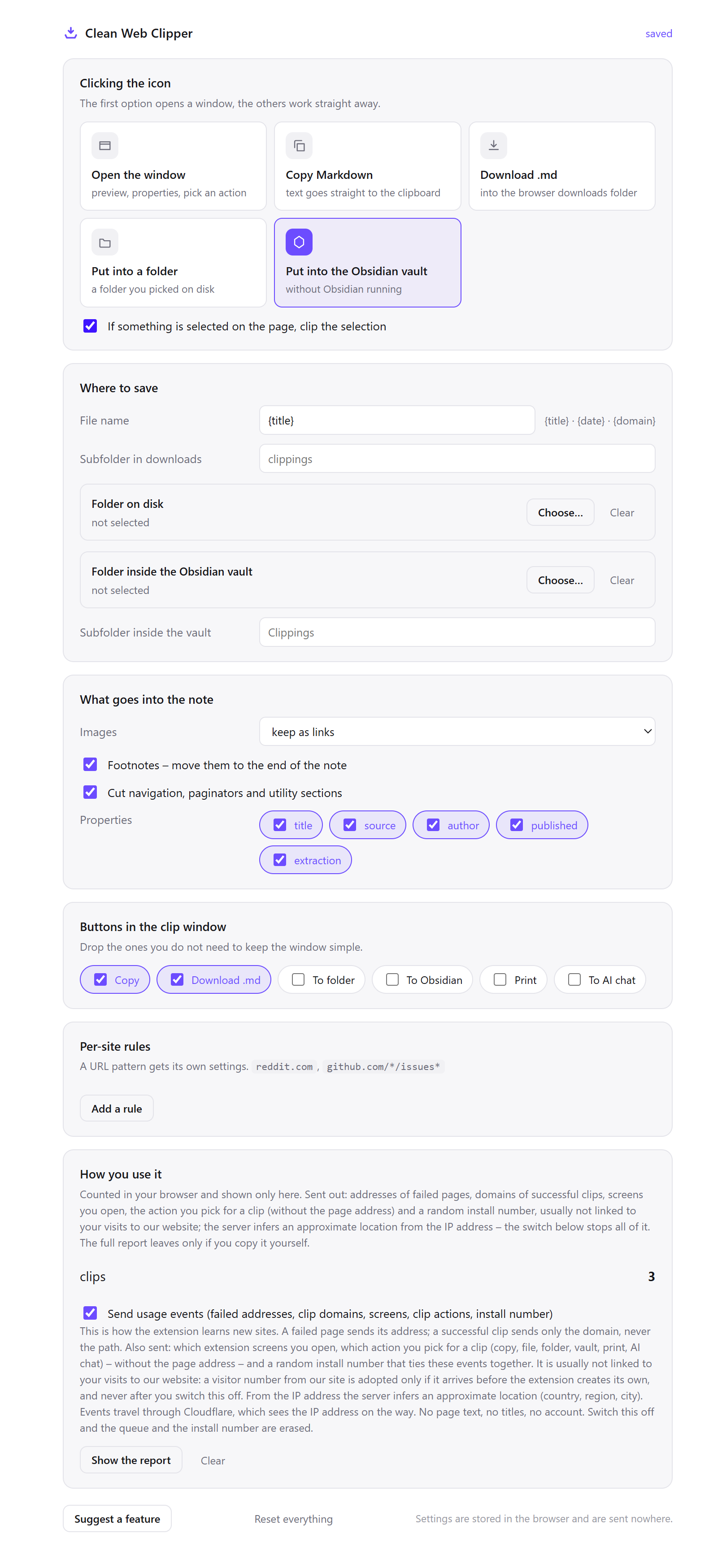
The icon click is configurable. Leave it as a preview window, or set the click to drop the note into your vault and open nothing at all. The folder or vault is picked once in settings, and again only if Chrome resets access (a browser that cannot pick a folder saves through Downloads instead); Obsidian does not have to be running, because the browser writes the file itself.
Know where it stops
- It does not crawl or batch – one page at a time, the page you are on
- It does not summarise or rewrite – the text is converted, not edited
- It does not download images – image links point at the original site
Every note is stamped with an extraction field. dom means the text came from what the browser actually rendered. jsonld-articlebody means the page never finished rendering and the body had to be read from the page’s own structured data. And when it finds no article on the page – often on a storefront, a search result or a feed – the extension says so instead of dumping three hundred links on you.
Find the guide for your work
Clean Web Clipper has a separate guide for fifteen kinds of work, including developers, researchers, students, journalists, lawyers and Obsidian users. Each guide covers the settings for that job, the steps from page to note and the point where the extension stops.
- Developers
- Obsidian users
- AI and LLM context
- Researchers
- Students
- Writers
- Journalists
- Legal work
- Analysts
- Teachers
- Translators
- Product managers
- Technical writers
- Personal archive
- Reading without the noise
Questions before you install?
Will it stop working? Clipping does not depend on our server or on an account: Clean Web Clipper extracts the article inside your browser, so nothing on our side has to stay up for a clip to work.
It was tested on 512 pages from the most-visited sites with 0 crashes; the benchmark has every number. If it breaks on a site you need, send us the address of that page.
Is it free, and do I need an account?
Can a clip be lost without me noticing?
Does it slow the browser down?
What about other pages, Obsidian and what gets sent?
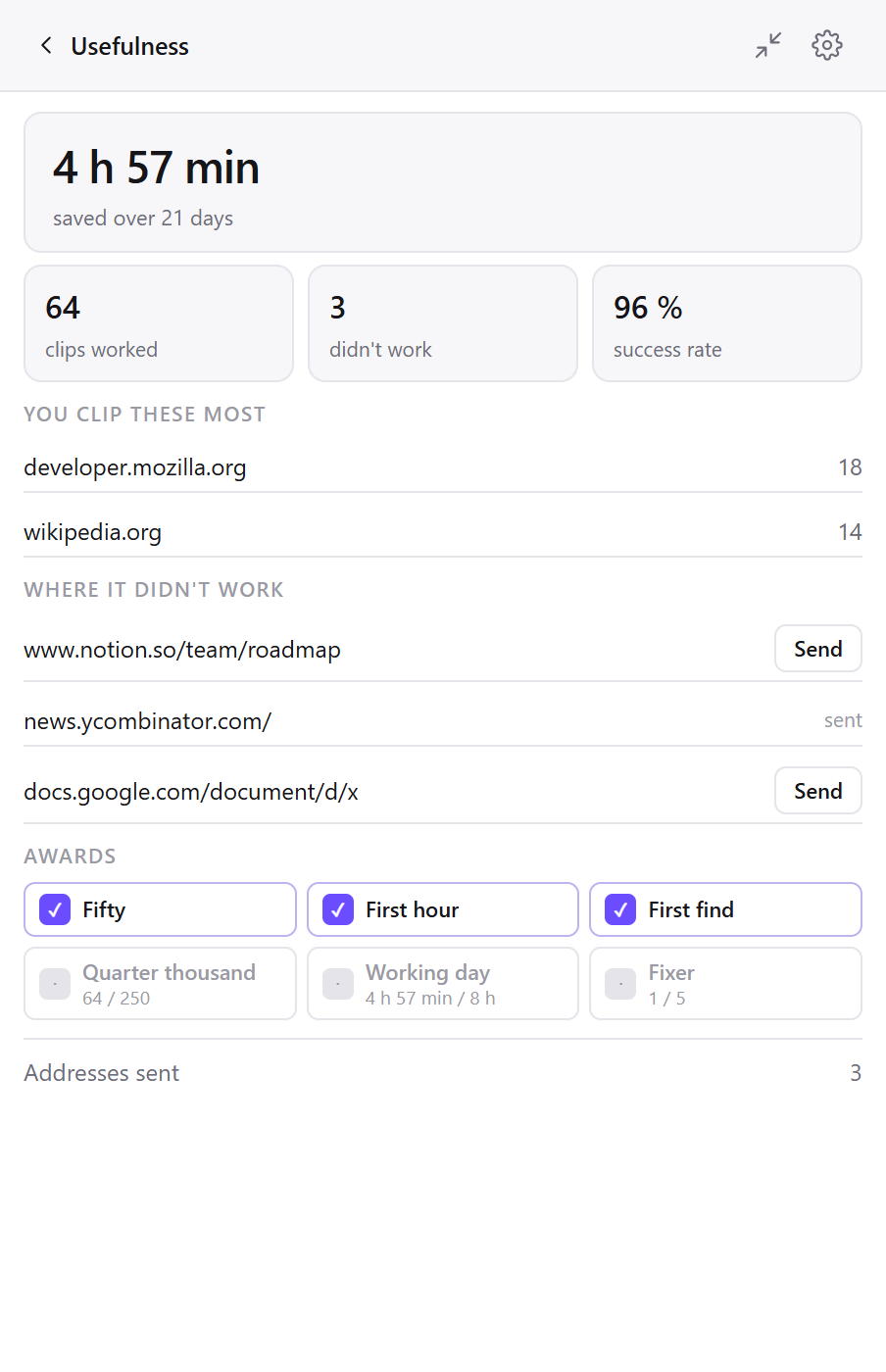
What happens on a page that is not an article? On a page that is not an article, Clean Web Clipper often says so. On storefronts, search results and some feeds the extension marks the clip “no article” instead of returning a page full of links; many feeds still come out as a list of headlines.
Do I need Obsidian running to save into my vault?
Does Clean Web Clipper send my pages anywhere?
What does it cost, and what leaves your browser?
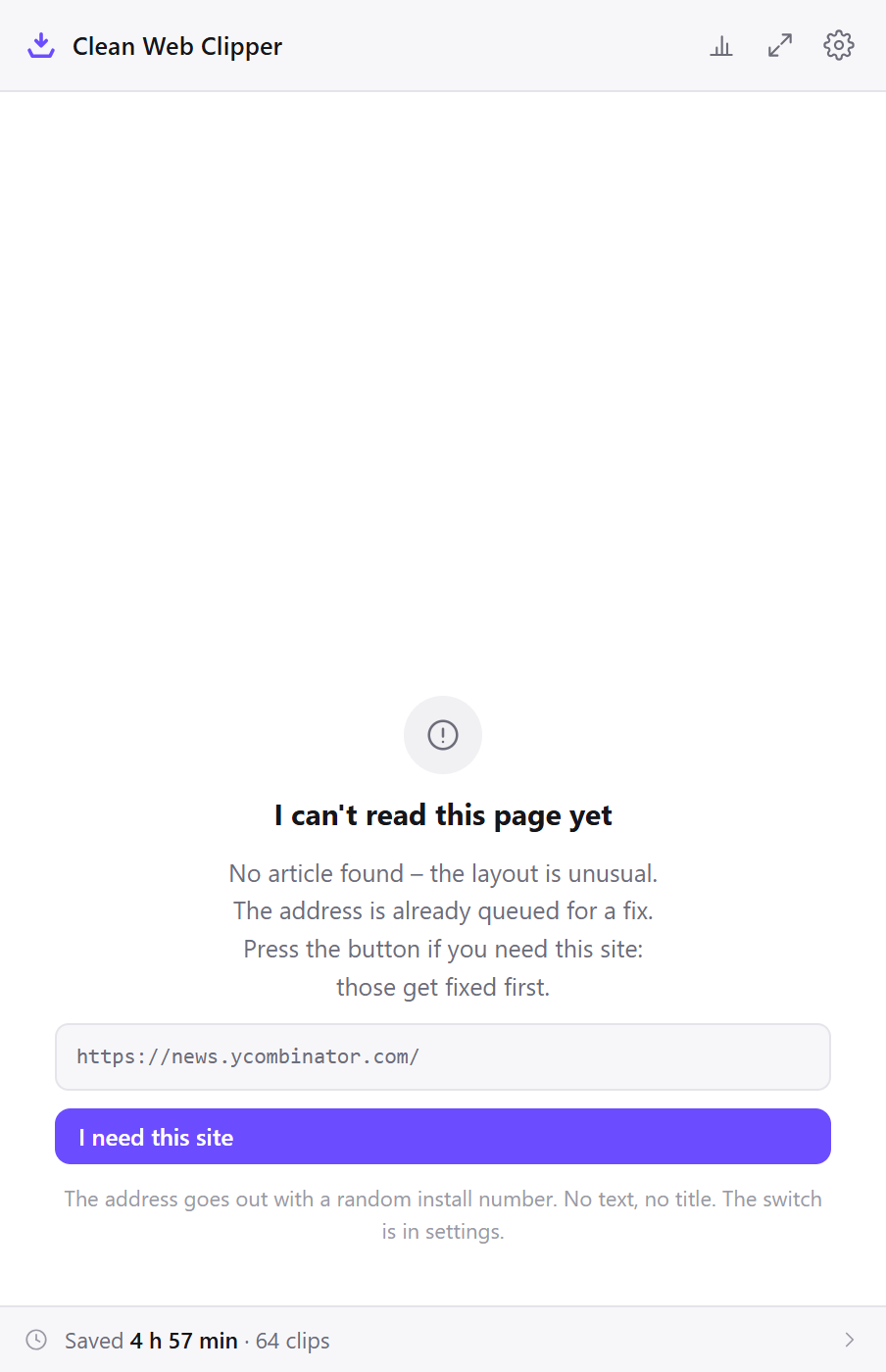
Clean Web Clipper is free in full: no paid tier, no page limit, no account and no sign-up. In the Chrome Web Store it will be listed as Clean Markdown Web Clipper. The page text and title never leave your browser. Five things do go to our own statistics server: a failed or reported page’s address, a clip’s bare domain, the screen you opened, the clip action without the page address and a random install number; the server works out country, region and city from the IP address.
One switch in settings stops all of these events; the privacy policy has the details.