Under the hood · ·
How Clean Web Clipper extracts an article, and where it stops
How Clean Web Clipper extracts an article comes down to four steps that run inside the page you are looking at: find the article, remove the furniture, convert to Markdown, and refuse a page that holds no article. The extraction pipeline never calls a server; the extension sends its own events only to our statistics endpoint.
How does it find the article on a page?
First the extension looks for the obvious containers an article usually lives in. When there is no such container – and on a lot of real sites there is not – it falls back to measuring text density: which block holds the most paragraph text that is not inside a link. The narrowest block that still holds almost all of that text wins.
A block whose text is mostly link labels is a menu or a feed, not an article, and it is rejected – unless it holds more than about 1200 characters of real text, because long articles legitimately contain many links.
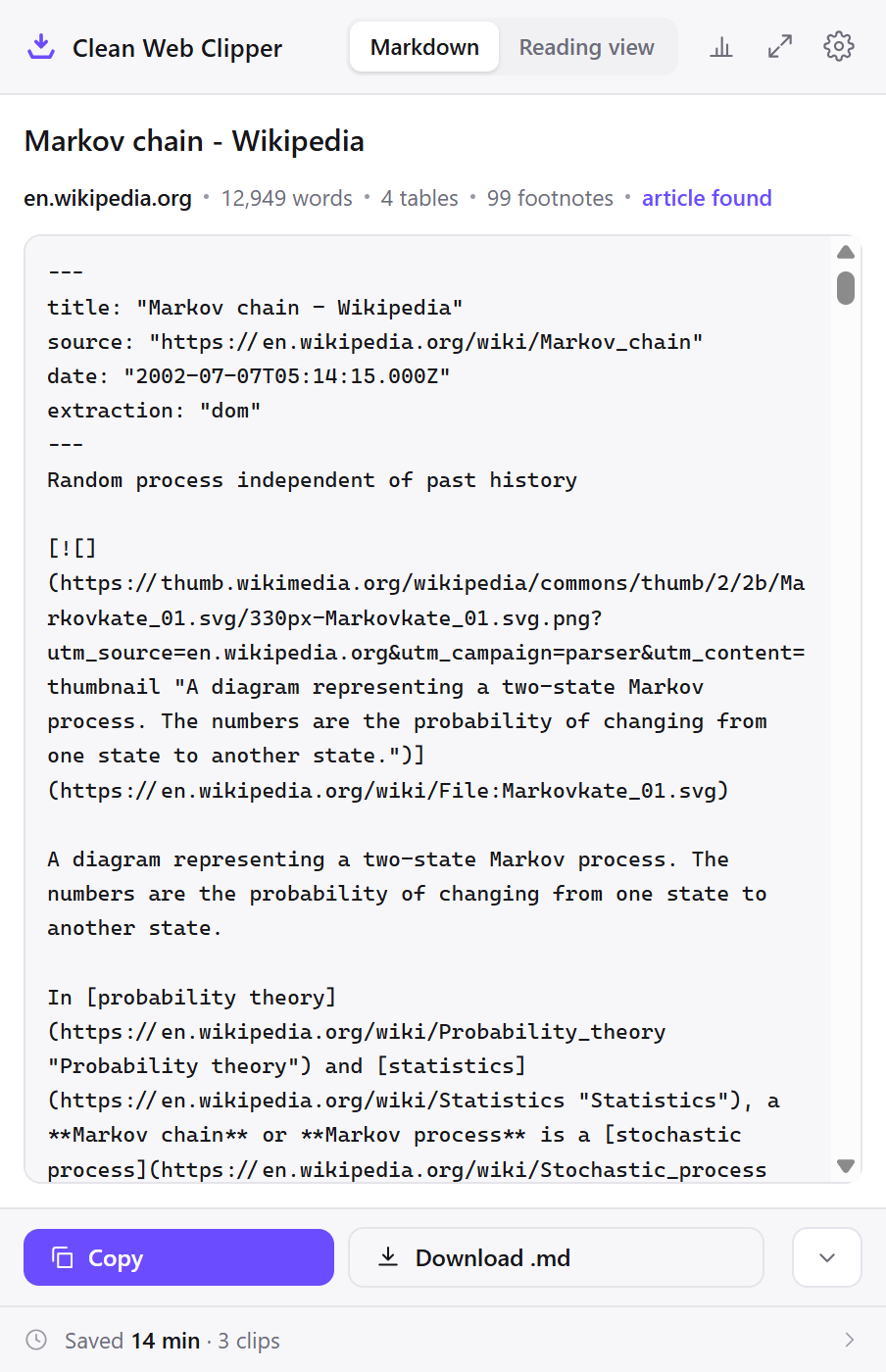
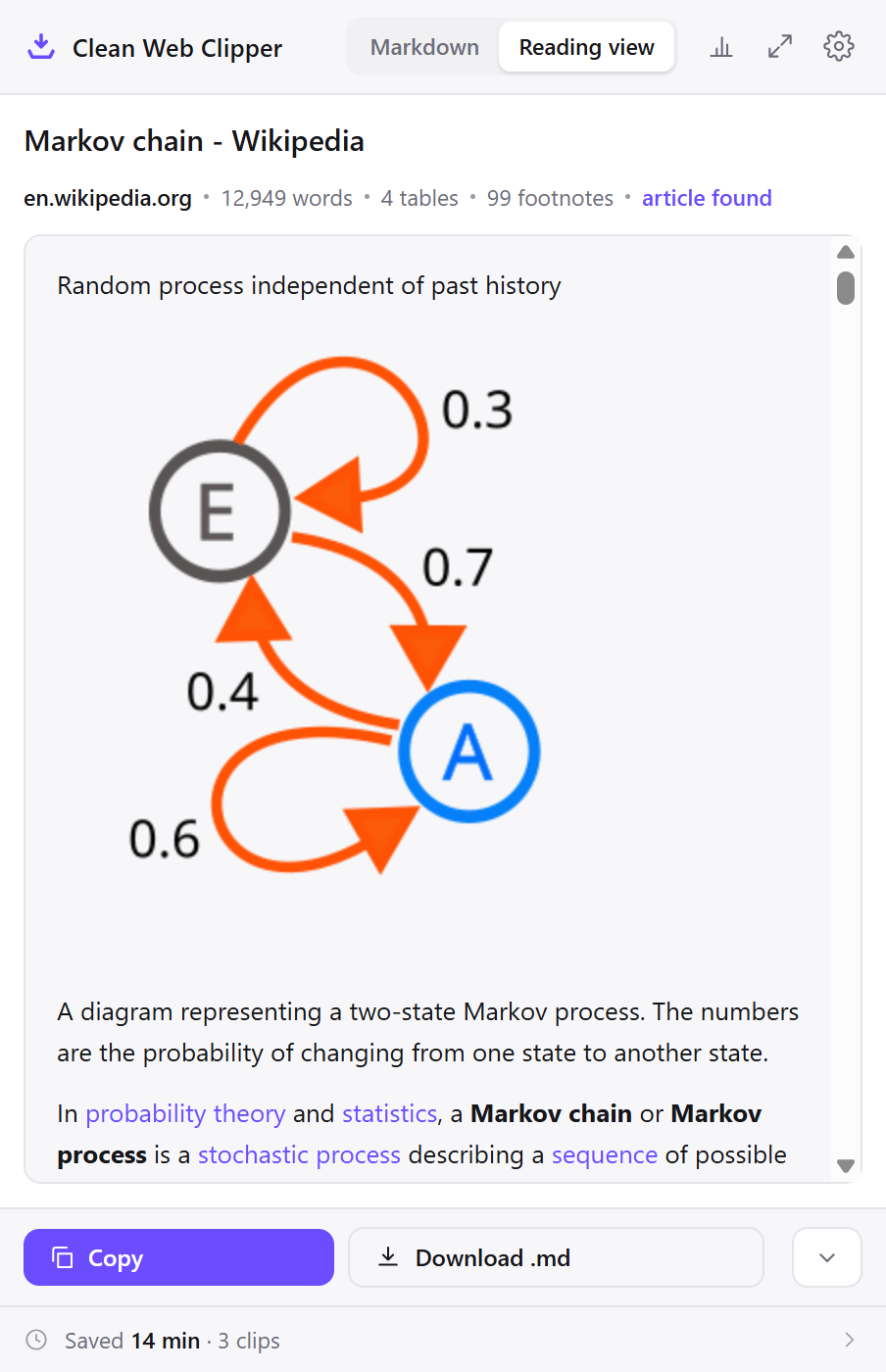
Remove most menus, banners and repeated navigation
Then the known non-content elements go: navigation, banners, share bars, cookie notices, paginators, “read next” feeds and logo strips. Repeated lines are removed, because navigation duplicated in every section is the single biggest source of noise in a clipped page. Only short lines count as repeats and the first copy stays; lines inside code fences and tables are never touched, because there repetition is normal. A heading left with nothing under it is dropped too. When you clip a selection, none of this cleanup runs – you chose that text yourself.
the page as it loads
[Skip to content](#main) [Log in](/login) [Sign up](/register)
[Home](/) [News](/news) [Sport](/sport) [Culture](/culture) [More](/more)

We use cookies and similar technologies to improve your experience.
[Accept all] [Manage preferences]

# The article you came for

Actual first paragraph of the text.

<div class="promo-inline">

## Read next
[Another headline](/a) [One more headline](/b) [And a third](/c)
what ends up in the note
# The article you came for

Actual first paragraph of the text.
Convert tables, code and footnotes to Markdown
Tables are serialised by the extension itself rather than a generic plugin, because generic converters break on a cell containing a list or a code block. Code fences take the language from the page’s own markup. Reference links are collected into Markdown footnotes before the sanitiser strips the ids they rely on – the order matters, and getting it wrong silently loses every footnote. How many tables each engine kept on the same 109 pages is counted on the benchmark page.
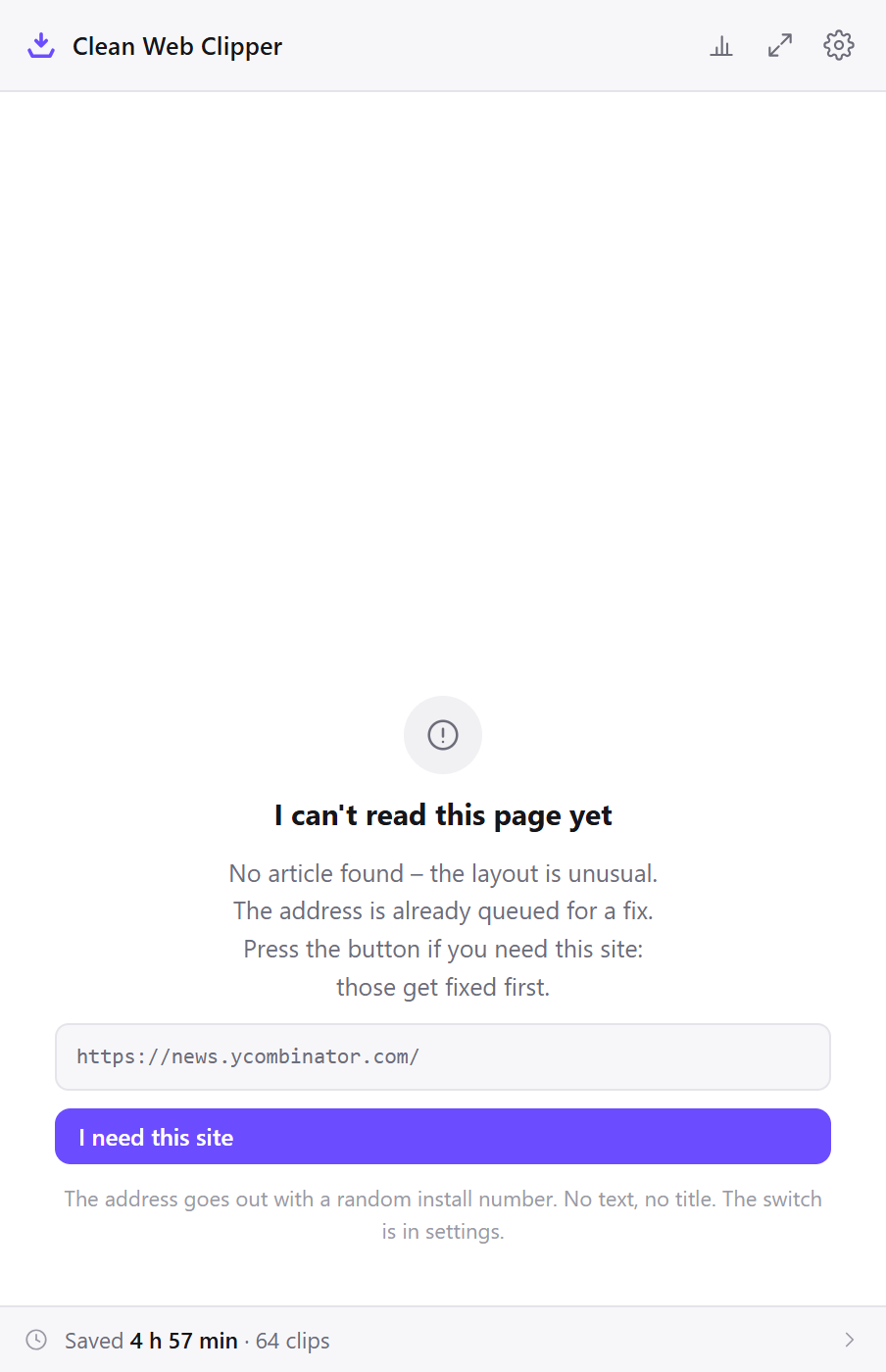
When does it answer “no article”?
On a storefront, a feed or a search result there is no article. The extension checks the finished Markdown – if more than a quarter of it sits inside link labels, it reports “no article” rather than handing you a page of links. That refusal is deliberate, and it is why its character counts on the benchmark are lower than those of tools that always return something.
If it refuses a real article, send us the address of that page.
Know what it does not do
- It does not download images, video or other binary assets – image links point at the original site
- It does not crawl – one page at a time, the page you are on; clipping several tabs at once is on the wishlist
- It does not summarise or rewrite – the article text is converted, not edited
- It does not run on pages the browser protects, such as
chrome://, the extension store itself and PDFs opened in the browser