Who it is for · ·
Migrate docs to Markdown without the cleanup
Clean Web Clipper was built around the part of a documentation migration that usually costs the most time: removing what a generic HTML converter keeps. On 512 measured pages the extraction left zero leftover HTML tags, so when you migrate docs to Markdown, a page needs no cleanup pass behind it.
Where these numbers come from: the benchmark, with engine versions and dates
Why does cleanup follow the conversion?
The conversion itself is the quick part. What takes the week is everything that comes with it – the left nav repeated at the top of every file, the version picker, the “on this page” rail, the feedback widget, the breadcrumb and eight columns of footer. Multiply by two hundred pages and a migration becomes a find-and-replace project with a different set of selectors for every source site.
Then the parts you needed most arrive damaged. Code fences lose their language, so nothing is highlighted and a reader cannot tell a shell command from a JSON body. Tables with a list in a cell fall apart. Admonitions become orphaned paragraphs with nothing to mark them as warnings. Fixing that is not search-and-replace work; it is reading every page again.
The part nobody plans for is the audit afterwards. Six weeks in, somebody asks whether a paragraph in the new site was in the old one or was written during the migration, and if the converted files never carried the address they came from, that question has no answer short of finding the original page – which on a docs site that has since been switched off means finding nothing. A source line in every imported file costs one line and settles it, and a date line settles which version was imported.
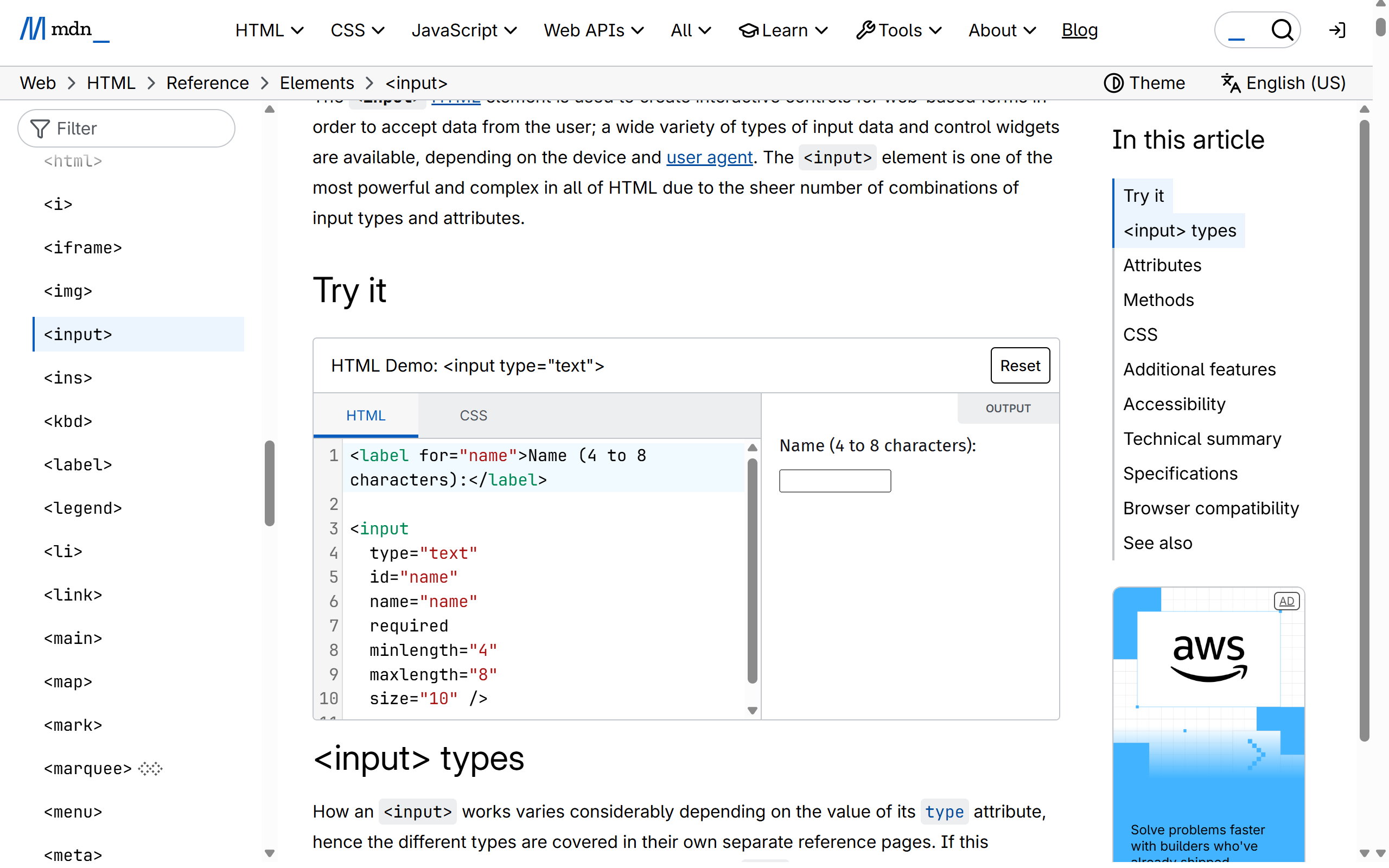
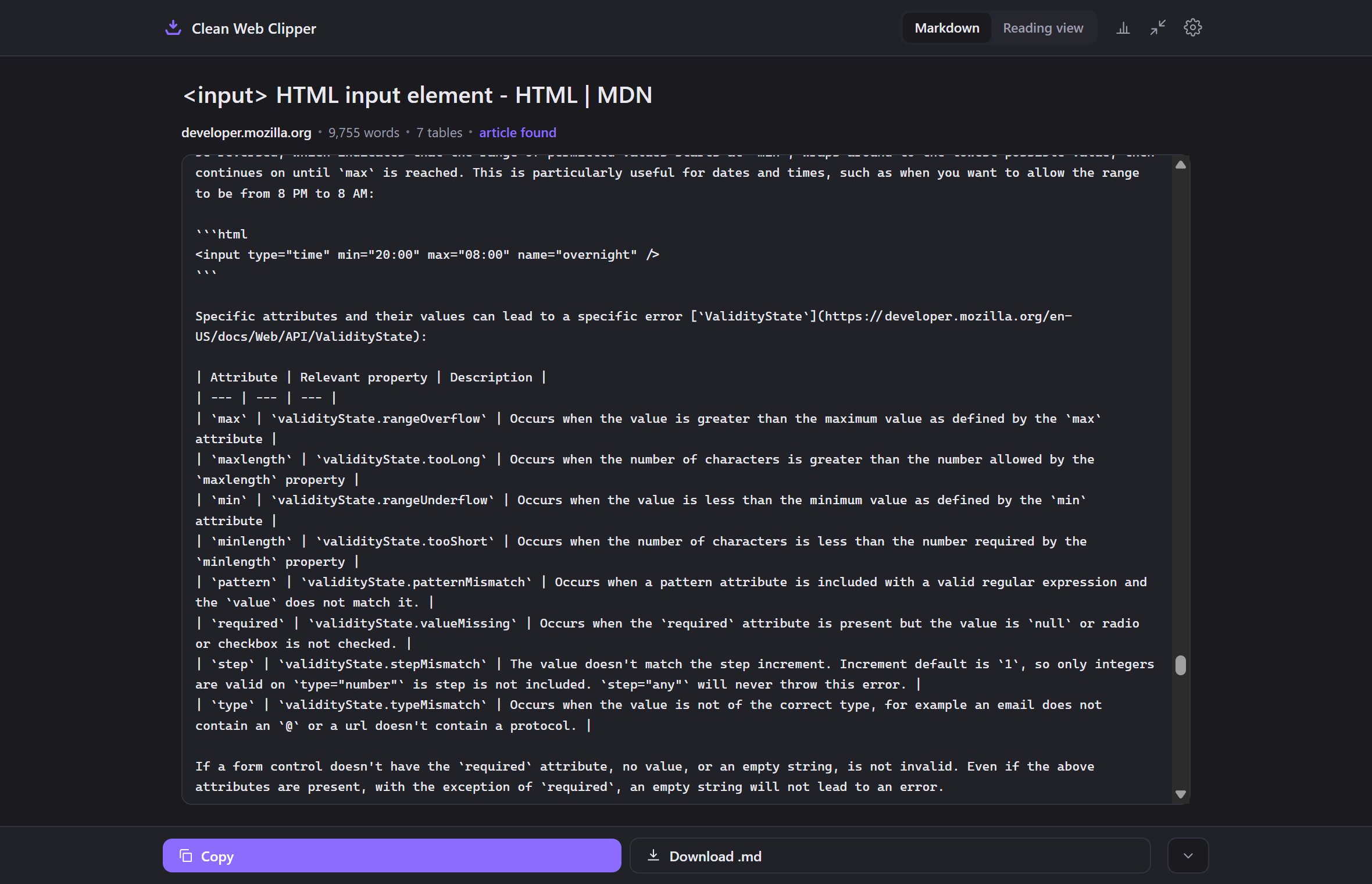
What maps cleanly?
- Headings, lists, tables, code fences and footnotes all map to standard Markdown.
- Code fences keep the language tag the site declared: 73 of 156 kept in a separate pre-release check on nine technical pages (August 2026), against 20 of 104 and 0 of 24 for the engines compared.
- Zero leftover HTML tags across 512 measured pages.
- Most navigation sidebars, version pickers and “on this page” rails are cut, not converted.
- Callouts get no rule of their own: one marked up as a quote stays a blockquote, one built from ordinary blocks arrives as plain paragraphs, and a short one in a sidebar element (
aside) can be cut. - A filename template and a subfolder keep an imported set organised as it grows.
- Every file carries the address it came from, so an imported paragraph can still be traced to its source page during review.
- Footnotes are collected before the sanitiser strips the element ids they depend on – an ordering detail that decides whether reference links survive at all.
…
## Workflow

Django can create migrations for you. Make changes to your models - say, add a field and remove a model - and then run [`makemigrations`](https://docs.djangoproject.com/en/5.2/ref/django-admin/#django-admin-makemigrations):

```shell
$ python manage.py makemigrations
Migrations for 'books':
  books/migrations/0003_auto.py:
    ~ Alter field author on book
```
…
Set it up for a migration
Two settings, one folder and one working rule about commits. The commit rule is the part that makes the review possible later.
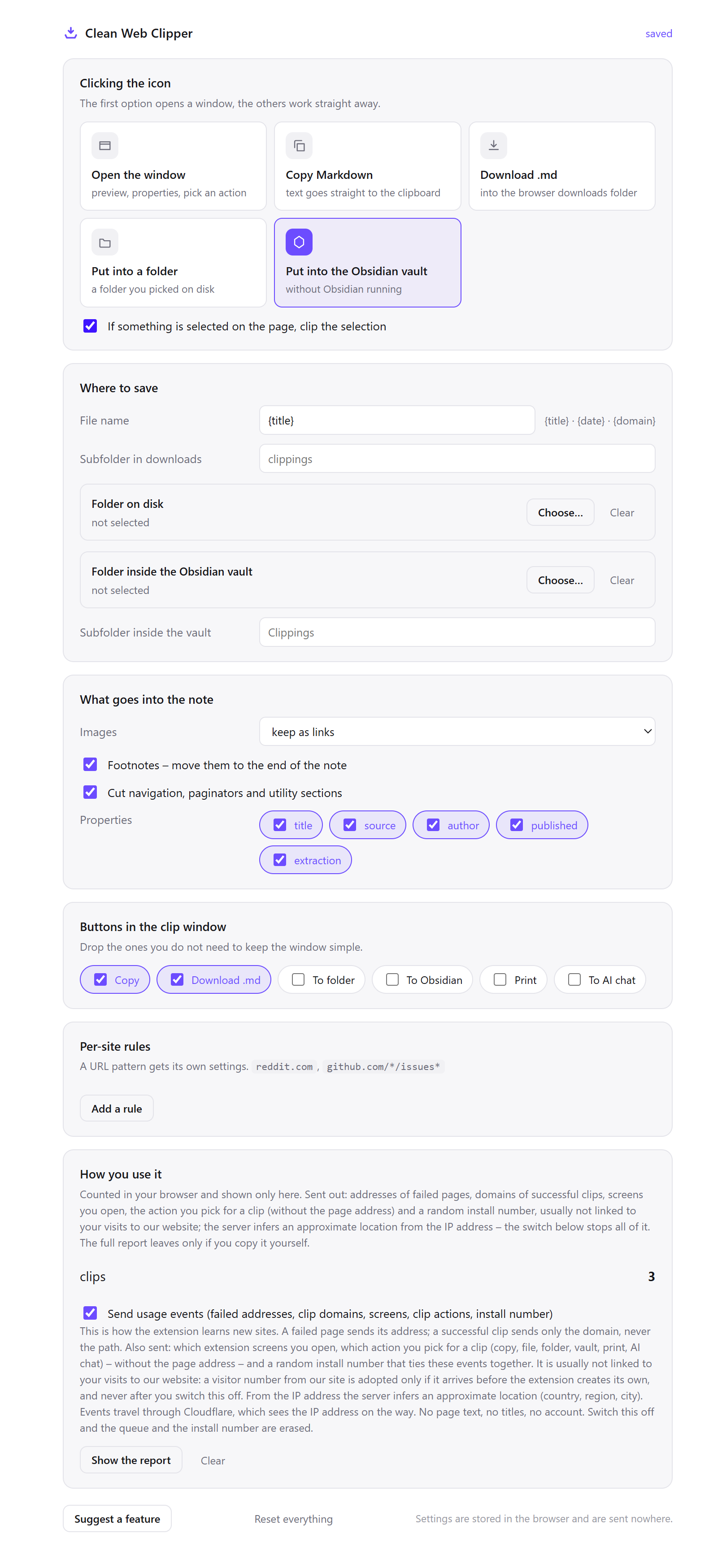
- Create an
import/directory in the docs repository, separate from where the finished pages will live. Raw conversions and edited pages should never be in the same folder while a migration is running. - Open Options from the extension icon, in Where to save set Folder on disk to
import/, and set what the icon click does to “Put into a folder”. Thirty pages is thirty keystrokes; it should not also be thirty windows. - Set the filename template to
{domain}-{title}. An import that draws from two or three source sites collides on titles constantly, and the domain is what keeps “Overview” from becomingOverview-3.md. - Under Properties, turn on
title,sourceandextraction.sourceis what answers the audit question six weeks later;extractiontells you which pages came from structured data rather than from what rendered. - Leave images as links rather than skipping them. You are not going to keep those URLs, but the link is the inventory – it records that the page had a diagram, which is what you need when you plan the asset work.
- Before clipping a page with tabs or accordions, open them. The extension converts what the browser has rendered, and a tab whose content is inserted on click is not in the DOM until it has been clicked.
- Commit the raw import as one commit, then restructure in the commits after it. That way every later diff shows your editorial changes rather than a mixture of your changes and the conversion’s.
Which settings suit an import?
The import settings are chosen for a set of files that will be reviewed by a person, page by page, and then edited – not for a folder that gets read once and forgotten.
| Setting | Value | Why this value here |
|---|---|---|
| Icon click | Put into a folder | Thirty pages should be thirty keystrokes and no windows |
| Where to save | import/ in the docs repo | Raw conversions and edited pages must not share a folder during a migration |
| Filename template | {domain}-{title} | Multi-source imports collide on titles; the domain is the only reliable discriminator |
| Properties | title, source, extraction on | source answers the audit question; extraction flags the pages worth re-checking |
| Images | Keep as links | The links are the asset inventory, even though you will replace all of them |
| Per-site rule | Each source site → its own subfolder | Review happens per source, because each site’s markup fails in its own way |
| Commits | Raw import first, edits after | Every later diff then shows editorial change rather than conversion noise |
… ## Scaffolding Your First Vite Project npmYarnpnpmBunDeno bash ```bash $ npm create vite@latest ``` bash ```bash $ yarn create vite ``` bash ```bash $ pnpm create vite ``` …
See three migrations
Three migrations below cover the common cases: thirty vendor reference pages, each captured with one keystroke, a guide built almost entirely from warning and note callouts, and a documentation set salvaged page by page before a product’s site goes offline. Each keeps the source address, which is what the audit six weeks later actually needs.
Thirty pages of vendor documentation
A partner’s API reference has to live in your docs. You clip thirty pages into import/, one keystroke each. The code fences arrive tagged where the site declared a language: in a separate pre-release check on nine technical pages (August 2026), the language tag survived in 73 of 156 fences against 20 of 104 and 0 of 24 for the engines compared, and the left navigation, version picker and feedback widget arrive nowhere at all.
What you then edit is prose and structure. What you do not edit is the two hundred lines of sidebar per page that a straight HTML conversion would have deposited at the top of every file, which is the actual reason migrations take weeks.
A guide built out of admonitions
The source guide leans heavily on warning, note and tip callouts. Markdown has no standard syntax for any of them and the extension has no rule for them, so each arrives as the site marked it up – usually plain paragraphs, sometimes a blockquote. The content survives; the distinction between the three types does not.
That is worth knowing before you start rather than after, because re-tagging by type is a manual pass and its size depends on the source. Searching the raw import for the labels – “Warning”, “Note”, “Tip” – is how you scope that pass, and it is one grep rather than a page-by-page reading.
Salvage before a site is switched off
A product is being retired and its documentation goes offline at the end of the month. There is no crawler here, so this is a page at a time – but each page arrives as a file with its original address in the header, which is what makes the salvage worth anything afterwards.
Images are the part to plan separately. They stay links to a site that is about to stop existing, so the pages that matter need their diagrams saved by hand before the deadline; the link inventory in the imported files is the checklist for that.
How does it compare to the other ways to convert?
A migration usually ends up using two of these together. The honest comparison is about where the manual work lands, not whether there is any.
| How it is done now | What you get | What it costs |
|---|---|---|
| A command-line HTML converter | Bulk conversion, scriptable | Converts the whole page: nav, footer and widgets become part of every file |
| A crawler plus a converter | The whole site, unattended | Selectors per source site, and a rules file that needs maintaining as the site changes |
| Ask the vendor for the source files | The real Markdown, if it exists | Often refused, often stale, and often in a format tied to their site generator |
| Copy and paste page by page | Full control over what is taken | Fences lose their language, tables with lists in cells fall apart |
| Clean Web Clipper | Clean per-page Markdown with the source recorded | One page at a time, no link rewriting, no asset download |
What needs fixing after an import?
Four things routinely need a pass after importing Clean Web Clipper files into a docs site: warnings, notes and tips flattened into paragraphs with no type, a missing top-level heading that was really a navigation element, image links still pointing at the old site, or a page recorded as jsonld-articlebody worth checking against the original. Each comes with the mechanical fix.
All my callouts look the same now
Warnings, notes and tips lose their type, because Markdown has no standard admonition syntax and the extension has no rule for callouts: they arrive as plain paragraphs, or as blockquotes where the site marked them up that way. The text is intact and the label at the start usually survives, so a warning that began with a bold “Warning:” still says so. A short callout in a sidebar element (aside) can be cut, so check those against the page. Re-tagging by type is a pass you plan for; one grep for the labels sizes it.
A page came in with no heading at the top
Empty headings are dropped, and on many documentation sites the visible page title is not a heading at all but a navigation element outside the article body. The title still reaches the file through the title frontmatter field, which is taken from the page’s own metadata. Promoting it to an H1 is a mechanical step you can script across the import.
The image links still point at the old site
Image links in an import keep pointing at the old site. The extension downloads no binary assets, so every image is a link to where it was, and an imported set is not self-contained. Treat the links as an inventory rather than as a result – they tell you which pages have assets and how many, which is exactly the list the asset migration needs.
A page recorded jsonld-articlebody and reads differently from the site
A page marked jsonld-articlebody shipped its article text in structured data and never finished rendering it, so the body came from the structured data instead. The two are not always the same – a site that updates its rendered page more often than its structured data will leave an older version in that block. Those pages are the ones to read against the original before you commit them.
What does Clean Web Clipper not do in a docs migration?
Clean Web Clipper is not a migration tool: no crawler, no link rewriting, no redirect map, no asset download. Images stay links to the original site, so an imported set is not self-contained. Anything Markdown cannot express (tabbed code blocks, includes, admonition types, custom components) is flattened to the nearest plain equivalent, so the content survives and the styling does not.
The extension converts what the page has rendered, so text inside an unopened accordion is not in the DOM and is not clipped.
What survives the import?
How faithful is the heading structure? Heading levels are kept as they appear in the article body. Empty headings, a common artefact of navigation blocks, are dropped.
What about admonitions and callouts?
aside) can be cut. Markdown has no standard admonition syntax, so the text is kept where it arrives and the type is not.Can it handle a whole documentation site?
What happens to content inside tabs or accordions?
Do the images come across?
Does the file record which version of the docs it came from?
source line stores the address exactly as it was in the address bar – so a page clipped from a /v4/ path says so, which is more than the imported text itself will ever tell you.What does it not automate?
Will the frontmatter fit my site generator? The frontmatter is standard YAML with fixed field names (title, source, author, date, extraction) so it parses everywhere, but the names are the extension’s rather than your generator’s. Mapping them is a one-line script across the import, and any field you do not want can be switched off before you clip.
Does it rewrite links between the imported pages?
source line in each file is what that mapping is built from.Are heading anchors preserved?
source line tells you what the original anchor was.