Who it is for · ·
Clean source text for your CAT tool
Clean Web Clipper strips most of a page’s navigation before the file ever reaches your CAT tool, so a pasted source no longer turns every menu item into a segment you have to skip, count and explain on an invoice. What arrives is clean source text, ready to import.
Where these numbers come from: the benchmark, with engine versions and dates
Why are some segments not text?
You import a page and the project opens with sixty segments before the first sentence of the actual copy: “Skip to content”, “Log in”, nine product categories, a cookie notice and a language switcher listing thirty languages. None of it is translatable content, but all of it is in the file, in the word count, and has to be locked or deleted one segment at a time.
Then there is the repetition. The same menu block appears again in every section and again in the footer, so a memory fed from that file starts proposing “Read next” as a match for real sentences. Cleaning the source before import is a single clip. Cleaning a translation memory afterwards is not.
Trouble starts before the job does. You are asked to quote for “this page”, and the number you give depends entirely on what you counted – a count taken from the raw page includes the menu, and a count taken after cleaning does not, which is a conversation nobody enjoys having twice. Then the client edits the page while you are working on it. A file clipped on the day you quoted, with the address and the page’s own date in its header, settles both questions without anyone having to remember what the page looked like.
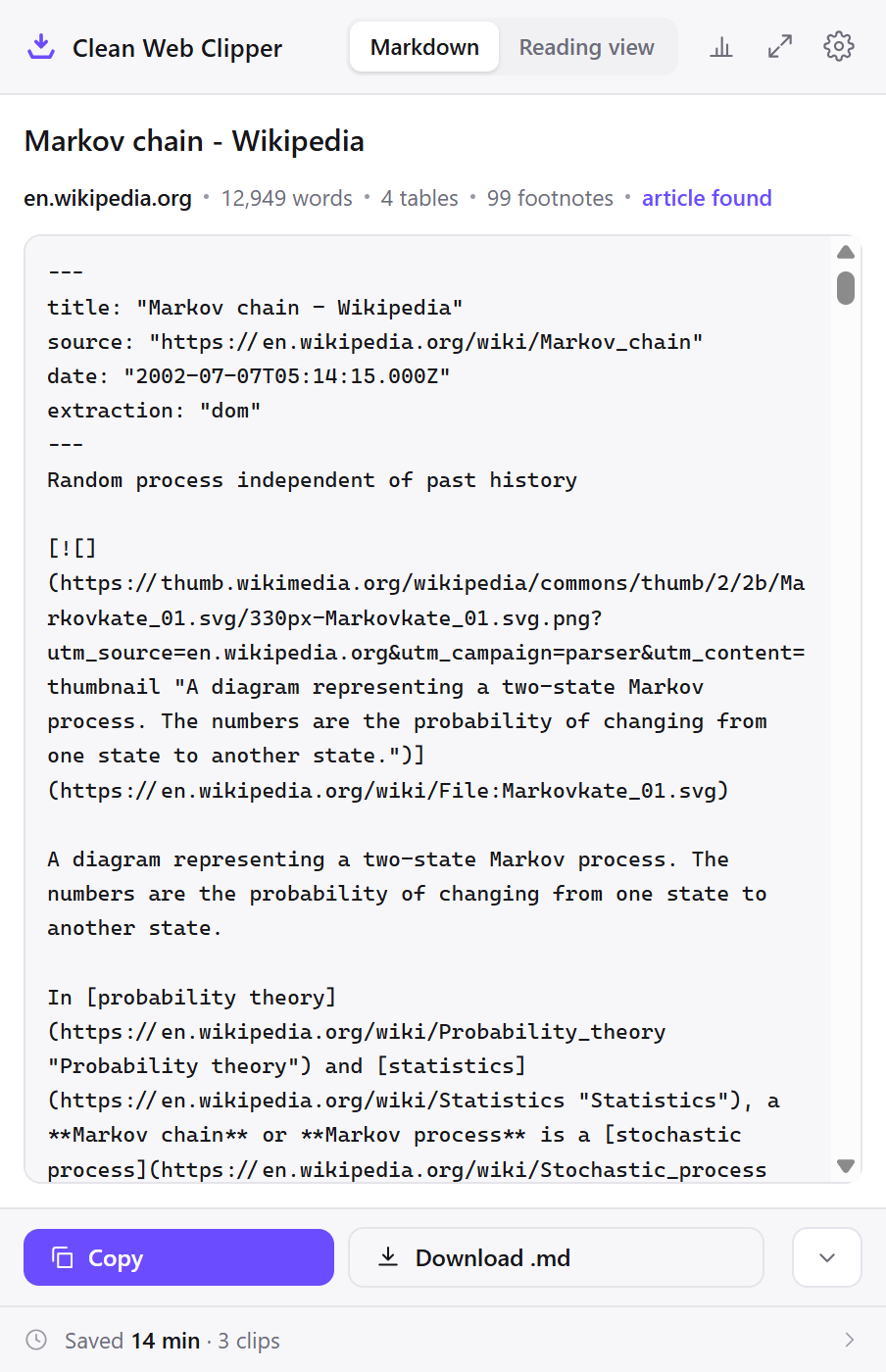
What reaches the segment list?
- Most menus, paginators, consent bars and “read next” feeds are cut before the file exists.
- Roughly four times less duplicated navigation than the average of the three engines compared: 102 repeated lines against 417 on average (282, 478 and 491), and 2.8 times less than the best of them.
- Not one leftover HTML tag across 512 measured pages, so no stray markup turns into an inline tag.
- Inline formatting maps to Markdown – bold, italic, links, code and lists – ready for a CAT tool with a Markdown import filter.
- The source URL travels in the frontmatter, so the context of a segment is one click away.
- Measured on 403 pages from the top fifty sites of 11 European countries and Brazil, each captured in its own language: no crashes.
- Headings, lists and blockquotes keep their level, so the structure the delivery has to mirror is visible in the source file rather than inferred from the segments.
titleanddatecome from the page’s own metadata, so the job folder records which version of the source you quoted against.
---
title: "Delete, allow, and manage cookies in Chrome - Computer - Google Chrome Help"
source: "https://support.google.com/chrome/answer/95647?hl=en"
extraction: "dom"
---
# Delete, allow, and manage cookies in Chrome

You can choose to delete existing cookies, allow or block third-party cookies, and set preferences for certain websites.

## Understand cookies

Cookies are files created by websites you visit. By saving information about your visit, they make your online experience easier. For example, sites can keep you signed in, remember your site preferences, and give you locally relevant content.

There are 2 types of cookies:

-   **First-party cookies:** Created by the site you visit. The site is shown in the address bar.
-   **Third-party cookies:** Created by other sites. A site you visit can embed content from other sites, for example images, ads, and text. Any of these sites can use third-party cookies to personalize content and ads, and learn about actions you take on other sites.

**Tip:** Some sites may prompt you to accept or reject cookies.
…
Prepare a source file
The aim is a file that opens in your tool with the first segment being the first sentence of the copy. Two settings do most of that, and one of them is easy to get wrong.
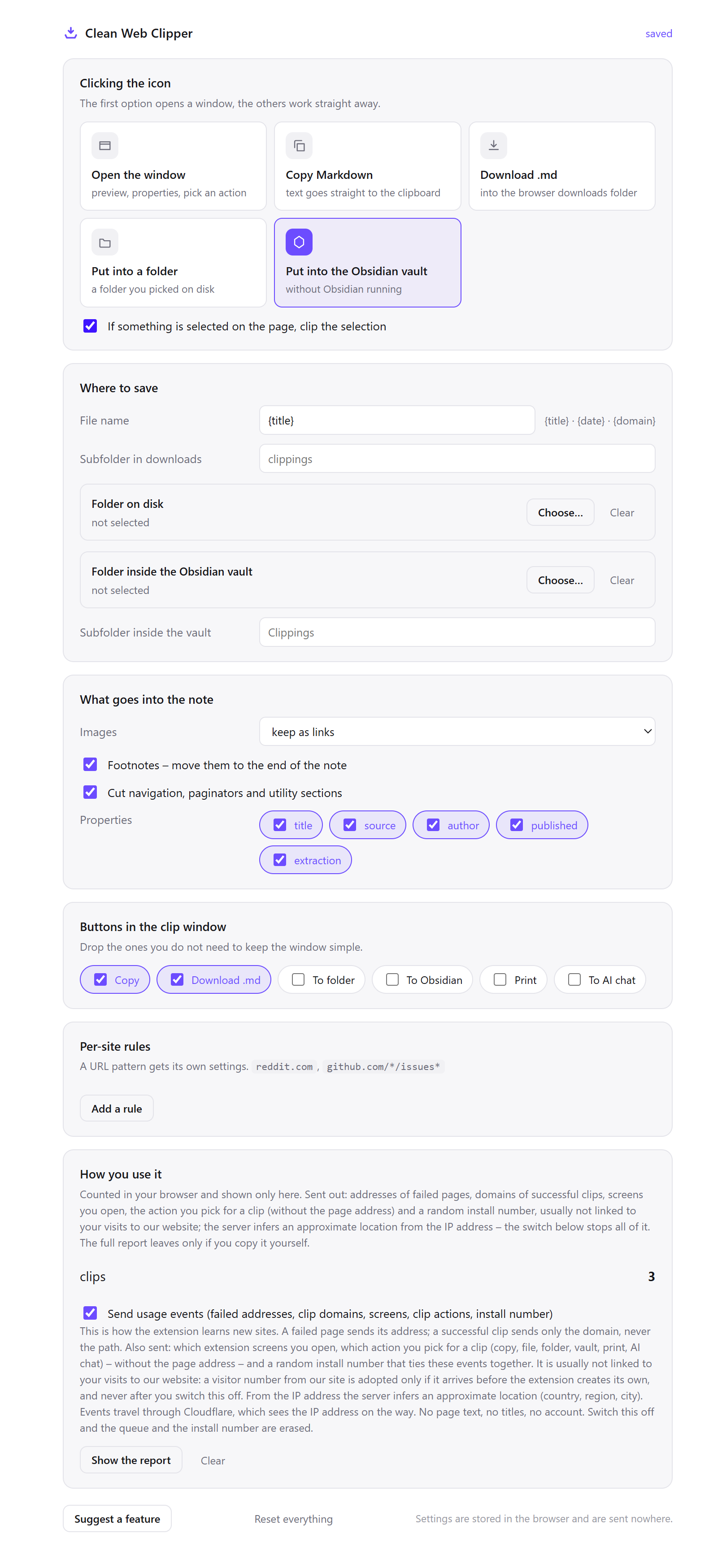
- Open Options from the extension icon and in Where to save set Folder on disk to the folder where the job lives –
jobs/client/source. The source file belongs with the job, not in a general clippings folder. - Set what the icon click does to “Download .md” or “Put into a folder”, whichever suits your file handling. Either way you end up with a file to import rather than a clipboard you have to paste somewhere first.
- Set the filename template to
{date}-{domain}-{title}.{date}is the publication date if the page declares one and the day you clipped if not; when the client’s page has changed since you quoted, keep your own note of the capture day as well. - Switch every field under Properties off if you import the file directly. A YAML header is text, and a tool that does not recognise it will happily offer
extraction: "dom"as a segment to translate. - Set images to skip. An image link in the Markdown becomes either a segment or an inline tag you have to carry through the whole file, for a picture that is not part of the copy.
- When only one section is in scope, select it on the page and clip the selection. Quoting for a section and delivering the page is a misunderstanding that starts at the moment of capture.
- Clip the page on the day you quote, and keep the file. It is the only record of the source as it stood when the price was agreed.
Which settings suit a source file?
The frontmatter row is the one that catches people. Everything else is about keeping the segment list to actual copy.
| Setting | Value | Why this value here |
|---|---|---|
| Icon click | Download .md | You want a file to import, not a clipboard to paste |
| Properties | All fields off for direct import | A YAML header is text; a tool that does not skip it will offer it as segments |
| Images | Skip | An image link becomes a segment or an inline tag for something that is not copy |
| Filename template | {date}-{domain}-{title} | Client, date and page in the name, so the right file is found without opening it |
| Where to save | The job folder | The source belongs with the job, and stays there when the page changes |
| Selection | Clip the section in scope | Scope creep frequently begins as a whole-page capture |
| Per-site rule | Client domain → job subfolder, images skipped | Regular clients stop needing a decision each time |
…
If any Task or Future from the *aws* sequence is *cancelled*, it is treated as if it raised [`CancelledError`](https://docs.python.org/3/library/asyncio-exceptions.html#asyncio.CancelledError "asyncio.CancelledError") – the `gather()` call is **not** cancelled in this case. This is to prevent the cancellation of one submitted Task/Future to cause other Tasks/Futures to be cancelled.
…
See three jobs
Three jobs below show the same cleanup paying off differently: a quote based on the actual copy rather than the site’s menu, a mid-job change caught by re-clipping and diffing, and a bilingual reference built from the same clean structure in two languages. Each starts from a segment list with no navigation in it.
A quote based on the copy, not the chrome
The client sends a URL and asks for a price. You clip the page – the menu, the language switcher listing thirty languages, the consent notice and the footer are gone before the file exists, so the count you quote is the count of the text that has to be translated.
The measured version of this is the duplicated navigation: 102 repeated lines across a 109-page corpus, against 282, 478 and 491 for the engines compared. On a page whose menu repeats in every section, that is most of the difference between two quotes for the same job.
The page that changed mid-job
Three days in, the client mentions that marketing “tweaked a couple of things”. You clip the page again; the second file takes a numeric suffix, and a diff against the file you quoted from shows two new paragraphs and a changed heading.
That is a scope conversation with a document in it rather than an argument about recollection. The numeric suffix says which capture came later, and the date field says what the page claimed about itself on each occasion.
Building a bilingual reference from a live site
The client’s site already exists in German. You clip the English page and the German page, one after the other, into the same job folder. Extraction does not depend on the language of the text, so both come out as the same clean structure with the same headings in the same order.
That was measured deliberately: 403 pages from the top fifty sites of 11 European countries and Brazil, each captured with the browser set to that country’s language, with no crashes and no leftover HTML in any of them. Aligning two clean files is a job; aligning two files full of menus is a different and worse job.
How does it compare to the usual preparation?
Preparation always happens; the question is where. These are the places translators currently do it, and what each one costs.
| How it is done now | What you get | What it costs |
|---|---|---|
| Copy and paste into the tool | The text, immediately | Sixty segments of navigation before the first sentence, locked or deleted by hand |
| Your tool’s own web import filter | A project straight from a URL | Filters are per-site work, and the boilerplate usually survives them |
| Ask the client for the source file | The real copy, in context | It arrives late, or as a CMS export nobody can open, or not at all |
| Save the page as HTML and clean it | Full control over what is kept | Manual work in a text editor, repeated for every page |
| Clean Web Clipper | A .md file of copy, with the source and date recorded | No XLIFF, no TMX, no segmentation, no counting for a quote. That stays with your tool |
What happens when the import is not clean?
Four causes explain most problems with importing a Clean Web Clipper file into a CAT tool: the frontmatter offered as segments because the tool did not recognise YAML, a page with no article body clipped as if it were one, a file imported as plain text instead of Markdown, or content that had not finished rendering when you clipped. Each has a specific fix.
My tool offered the YAML header as segments
The frontmatter is text at the top of the file, and a tool that does not recognise a YAML block treats it as content. Switch off every field under Properties in the settings before clipping a file you intend to import directly, or delete the header after clipping. Keeping a second copy with the header is worth it – that copy is where the source URL and the date live.
Sixty segments of navigation still made it through
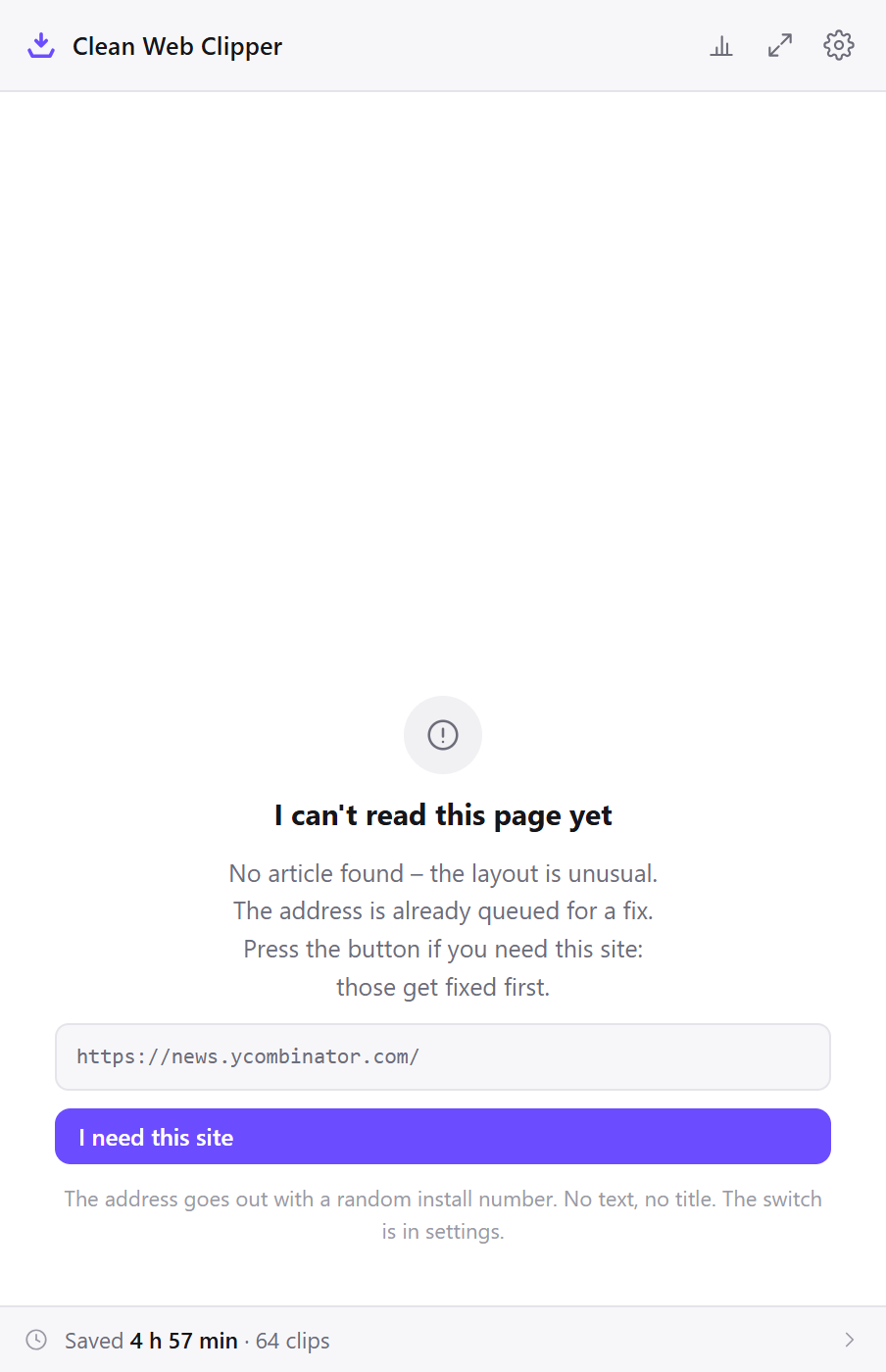
Navigation segments in a source file come from a page with no article body at all – a category listing, a shop front, a search result. The extension reports “no article” in that case rather than returning the links, so check what the clip window said before importing. If it did return an article and the menu came with it, the site marked its navigation up as article content, which is the one case the density heuristic cannot see through.
The inline formatting looks wrong after import
Markdown marks emphasis with characters rather than tags, so a tool that imports the file as plain text shows **bold** literally instead of as an inline tag. Import it as Markdown rather than as text; most tools have both filters, and they behave completely differently on the same file. Checking the import filter first saves reformatting the whole file by hand afterwards.
Half the copy is missing from a marketing page
Marketing pages are often built from design blocks that render as you scroll, or from tabs and accordions that insert their text only when opened. What the browser has not rendered is not in the DOM and cannot be captured. Scroll the page to the end, open the sections, and clip again – or ask the client for the copy deck, which for a page like that is the better source anyway.
What does Clean Web Clipper not do that a CAT tool does?
Clean Web Clipper is not a CAT tool: no XLIFF, no TMX, no segmentation and no counting for a quote. It does not preserve the page’s HTML for round-tripping. The output is Markdown, meant to be read and translated rather than merged back into the site. Text inside images is not extracted. And the interface language – English or Russian, set by your browser – is a separate thing from the language of the page.
The extraction itself does not depend on the language of the text.
What formats and languages does it handle?
Does it preserve inline formatting? Yes: bold, italic, links, code and lists become their Markdown equivalents, which most CAT tools handle as inline tags.
Can it clip pages in any language?
Can I get XLIFF out of it?
Does the interface speak my language?
Does anything get sent to a translation service?
What about staging sites and layout order?
Does it handle non-Latin scripts and right-to-left text? The text is captured as the page rendered it, character for character, in whatever script. Nothing is transliterated, reordered or normalised. The extraction works on the page’s structure, and the structure is the same regardless of what the letters are.