Who it is for · ·
Read the article without the clutter
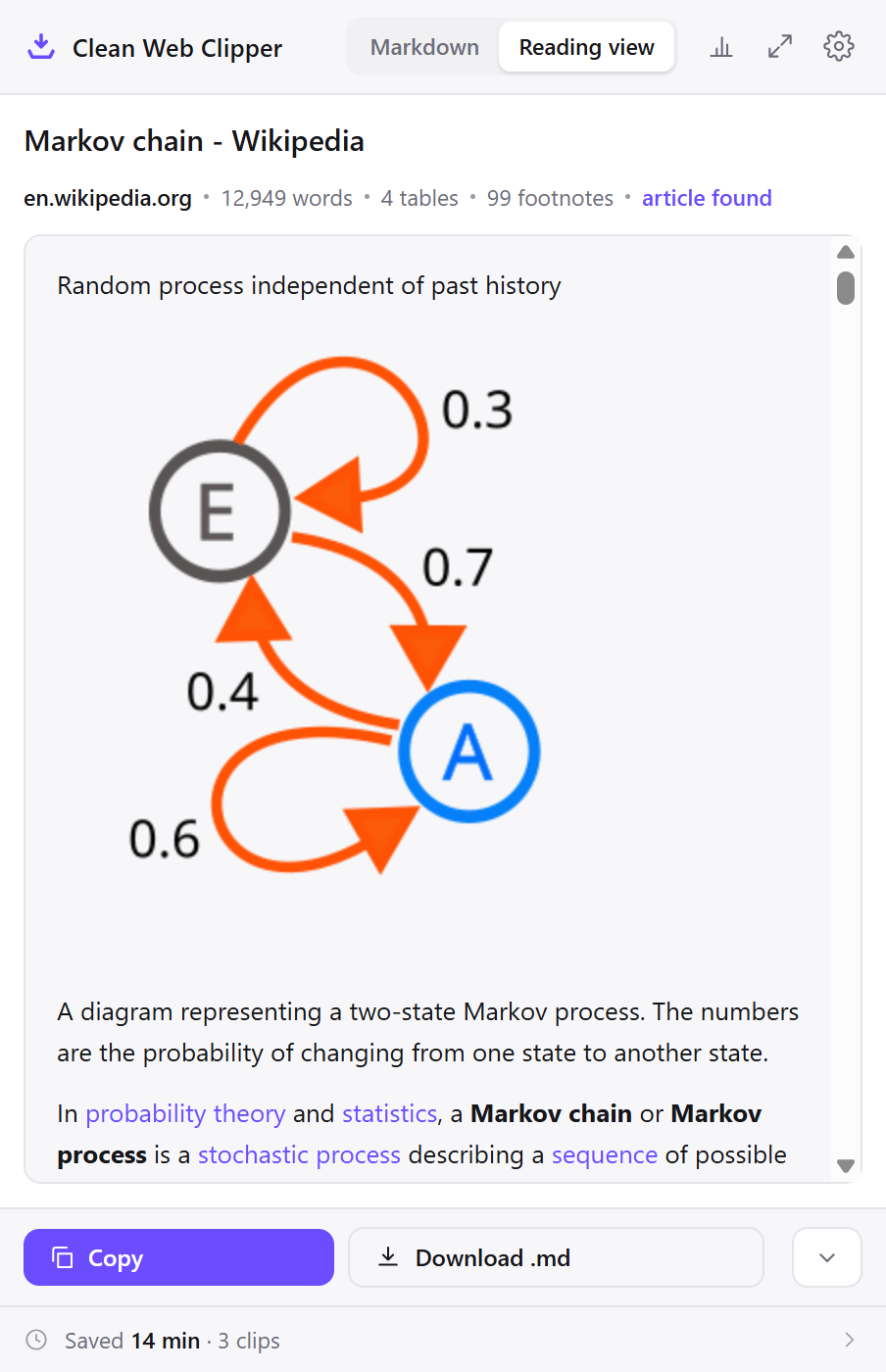
Clean Web Clipper’s clip window shows the article without most of the clutter, in your browser’s light or dark setting, with no page scripts running. Page furniture is not only visual clutter here – it is text a screen reader announces and a reader has to skip past on every single visit.
Where these numbers come from: the benchmark, with engine versions and dates
What does the page make you wade through?
Before the first sentence there is a consent dialogue, a subscription offer, a sticky header, a breadcrumb and a row of share buttons. With a screen reader that is a run of announcements on every page. With a magnifier at 400 per cent it is a lot of scrolling to find where the text even begins. Built-in reader modes help when they trigger, and they do not trigger everywhere.
Then the page interrupts. A newsletter panel slides in at the third paragraph, a video starts in the corner, the layout reflows as an advert loads and your place is gone. None of it is the article and all of it competes with the article, which is why reading a saved copy is often easier than reading the page it came from.
Navigation by structure suffers in a way that is easy to miss if you do not rely on it. Moving heading by heading is the fastest way through a long article, and it only works when the headings belong to the article – on a page whose menu sections, promo panels and footer columns are all marked up as headings, that shortcut walks you through the furniture instead. A clip contains the article’s own headings and nothing else, at the levels the article used, so the shortcut goes back to being a shortcut.
What does the clip window show?
- The reading view renders the clip as ordinary text – without Markdown symbols, with working links and real headings.
- It follows your browser’s light and dark setting, not the site’s.
- The window expands to about three quarters of the screen for a longer article.
- No page scripts run in the clip window – nothing slides in, autoplays or reflows while you read.
- The saved file is plain text, which any screen reader, braille display or reading tool handles with little navigation left to stumble over.
- Headings survive as headings, so heading-by-heading navigation still works inside the note.
- Lists stay lists and tables stay tables, so a screen reader announces them as lists and tables instead of as an undifferentiated run of text.
- Only the article’s own links are kept, so a list of links built from the note holds references rather than a hundred and twenty menu entries.
Summary

When websites and web tools are properly designed and coded, people with disabilities can use them. However, currently many sites and tools are developed with accessibility barriers that make them difficult or impossible for some people to use.

Making the web accessible benefits individuals, businesses, and society. International web standards define what is needed for accessibility.

Accessibility in Context

The power of the Web is in its universality.

Access by everyone regardless of disability is an essential aspect.

The Web is fundamentally designed to work for all people, whatever their hardware, software, language, location, or ability. When the Web meets this goal, it is accessible to people with a diverse range of hearing, movement, sight, and cognitive ability.

Thus the impact of disability is radically changed on the Web because the Web removes barriers to communication and interaction that many people face in the physical world. However, when websites, applications, technologies, or tools are badly designed, they can create barriers that exclude people from using the Web.

Accessibility is essential for developers and organizations that want to create high-quality websites and web tools, and not exclude people from using their products and services.

What is Web Accessibility

Web accessibility means that websites, tools, and technologies are designed and developed so that people with disabilities can use them. More specifically, people can:

perceive, understand, navigate, and interact with the Web
contribute to the Web
…
Set it up for reading
Four settings, none of which change how the extension extracts. They change what you land in after pressing the shortcut, which for reading is the whole experience.
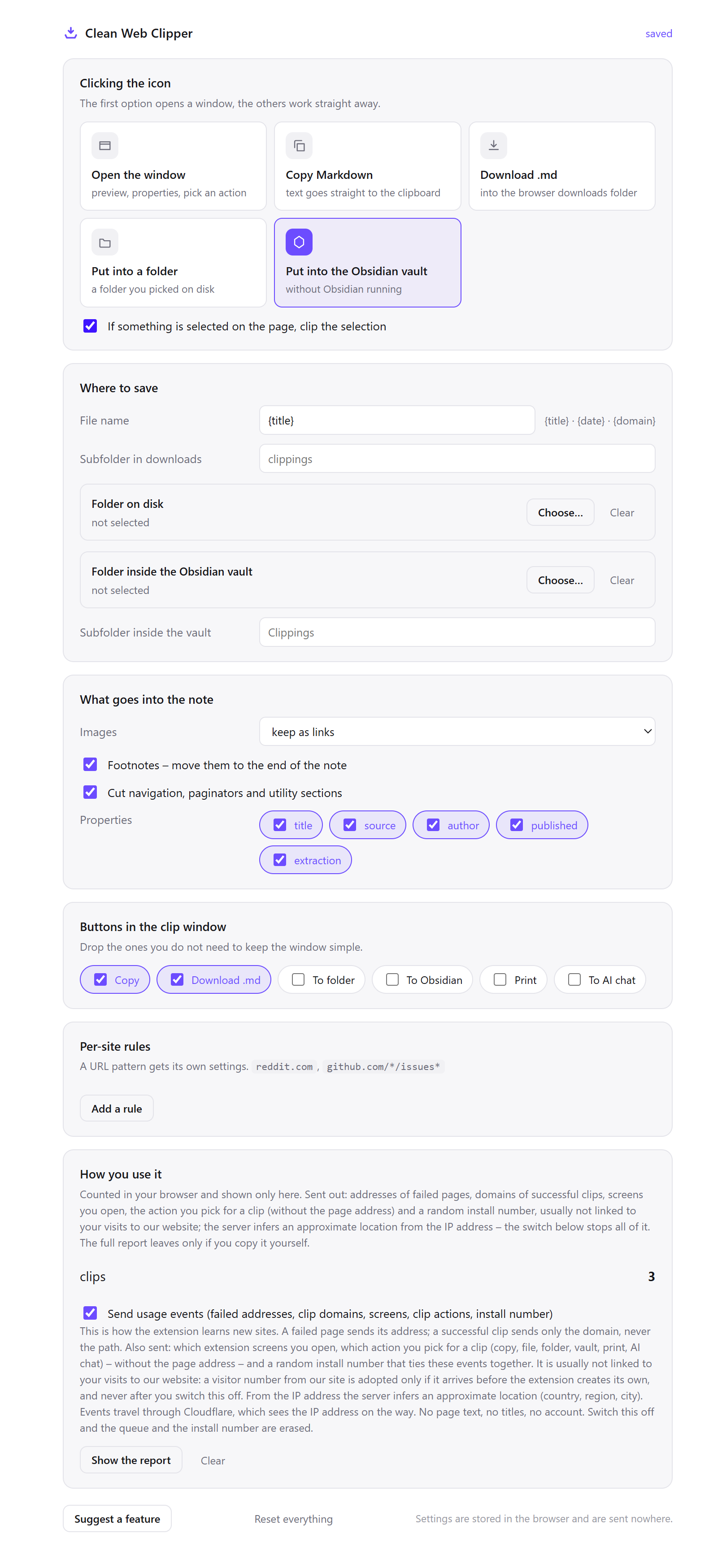
- Right-click the extension icon and choose Options. Leave what the icon click does as the preview window – for reading, the window is the destination rather than a step on the way to a file.
- Confirm the keyboard shortcut at
chrome://extensions/shortcuts.Alt+Shift+Mclips with no pointer movement at all, which matters on a page where the icon is a small target beside a dozen others. - Open the clip window once on a long article and expand it. It opens at about three quarters of the screen every time, so there is no size to set.
- Switch to the reading view inside the window. It renders the clip as ordinary text (real headings, working links, no Markdown symbols) in your browser’s own light or dark setting rather than the site’s.
- If your screen reader announces unlabelled images on the sites you read, set images to skip, either everywhere or as a per-site rule. The extension never invents a description, so an image the page did not label stays unlabelled.
- Save the file when an article is worth keeping, and read it in the tool you already use. A plain text file has no scripts, no layout and no fixed type size, so the presentation is entirely your reading tool’s to decide.
- Add per-site rules for the two or three sites you read every day, so the settings that suit each of them stop being something you adjust.
Which settings suit reading comfort?
The images row is the one worth thinking about, because it depends on how you read rather than on what the page contains.
| Setting | Value | Why this value here |
|---|---|---|
| Icon click | Preview window | For reading, the window is the destination, not a step towards a file |
| View | Reading view | Ordinary text with real headings and no Markdown symbols to read past |
| Window size | Expanded | Roughly three quarters of the screen, the same each time you expand it |
| Images | Skip, if unlabelled images interrupt you | Nothing is invented as a description, so an image the page did not label stays unlabelled |
| Shortcut | Alt+Shift+M | No pointer precision required, and no small target to find in a toolbar |
| Per-site rule | Daily sites → their own settings | Stops the adjustment being something you repeat every morning |
| Saving | Keep the .md file for long reads | A text file lets your own reading tool set size, spacing and voice |
## In Brief
## Success Criterion (SC)
## Intent
### Rationale for the Ratios Chosen
### Notes on formula
### Inactive User Interface Components
## Benefits
## Techniques
### Advisory Techniques
### Failures
## Key Terms
## References
## Test Rules
See three ways of reading
Three ways of reading show what the clip window removes: a screen reader no longer announcing a consent dialogue and a row of share buttons, a magnified page that no longer reflows as adverts load, and a saved file read later in whatever tool sets its own type size and voice.
A news article with a screen reader
On the page there is a consent dialogue, a subscription offer, a sticky header, a breadcrumb and a row of share buttons before the first sentence, all of it announced. In the clip window there is a heading and then the article.
The measured version of that difference is duplicated navigation: 102 repeated lines across 109 pages, against 282, 478 and 491 for the engines compared. Repeated lines are exactly the material that gets announced again in every section; the counts are on the benchmark page.
A long read at high magnification
At 400 per cent, finding where the text begins is most of the work, and every advert that loads reflows the layout and takes your place with it. The clip window runs no page scripts, so nothing slides in, autoplays or moves once it is open.
Expanding the window to about three quarters of the screen gives the text a column that stays put. The article behind it is untouched. The extension does not restyle the original page – it shows you a copy of the text.
Reading later, in your own tool
You save the file and open it in the reader you already use, where the type size, the spacing, the contrast and the voice are yours. The heading structure comes with it, at the levels the article used, so moving by heading works inside the note as well as it did in the window.
A plain text file has no fixed font size, no minimum width and no scripts, which is why it behaves in a reading tool in a way a saved web page does not.
How does it compare to the other ways to strip a page?
Reader modes, skip links, restyling extensions and PDF copies all exist because pages are hard to read. Each solves a different part of it, and none of them, including this one, solves all of it.
| How it is done now | What you get | What it costs |
|---|---|---|
| The browser’s reader mode | Clean text, built in, free | Triggers on some pages and not others, and cannot be saved as a file |
| Skip links and landmarks | A jump past the navigation | Depends on the site having implemented them, which many have not |
| An extension that restyles the page | Your fonts and colours everywhere | The page’s own scripts still run, so panels still slide in and layouts still reflow |
| Print the page to PDF | A fixed copy that opens anywhere | Reflows badly at large text sizes, and brings the banner with it |
| Copy the text into a notes app | Full control over presentation | The menus come too, and the heading structure usually does not |
| Clean Web Clipper | Article text, with its structure, in a window or a file | It reads nothing aloud, sets no fonts, and leaves the original page as it is |
What happens when the clip window is not helpful?
Four causes cover most sessions where the Clean Web Clipper window is not helpful: a page with no article body at all, a size control that follows the browser’s zoom rather than its own setting, an image the source page never labelled, or a live tab still running behind the window while you read from the clip. Each comes with the setting or step that addresses it directly.
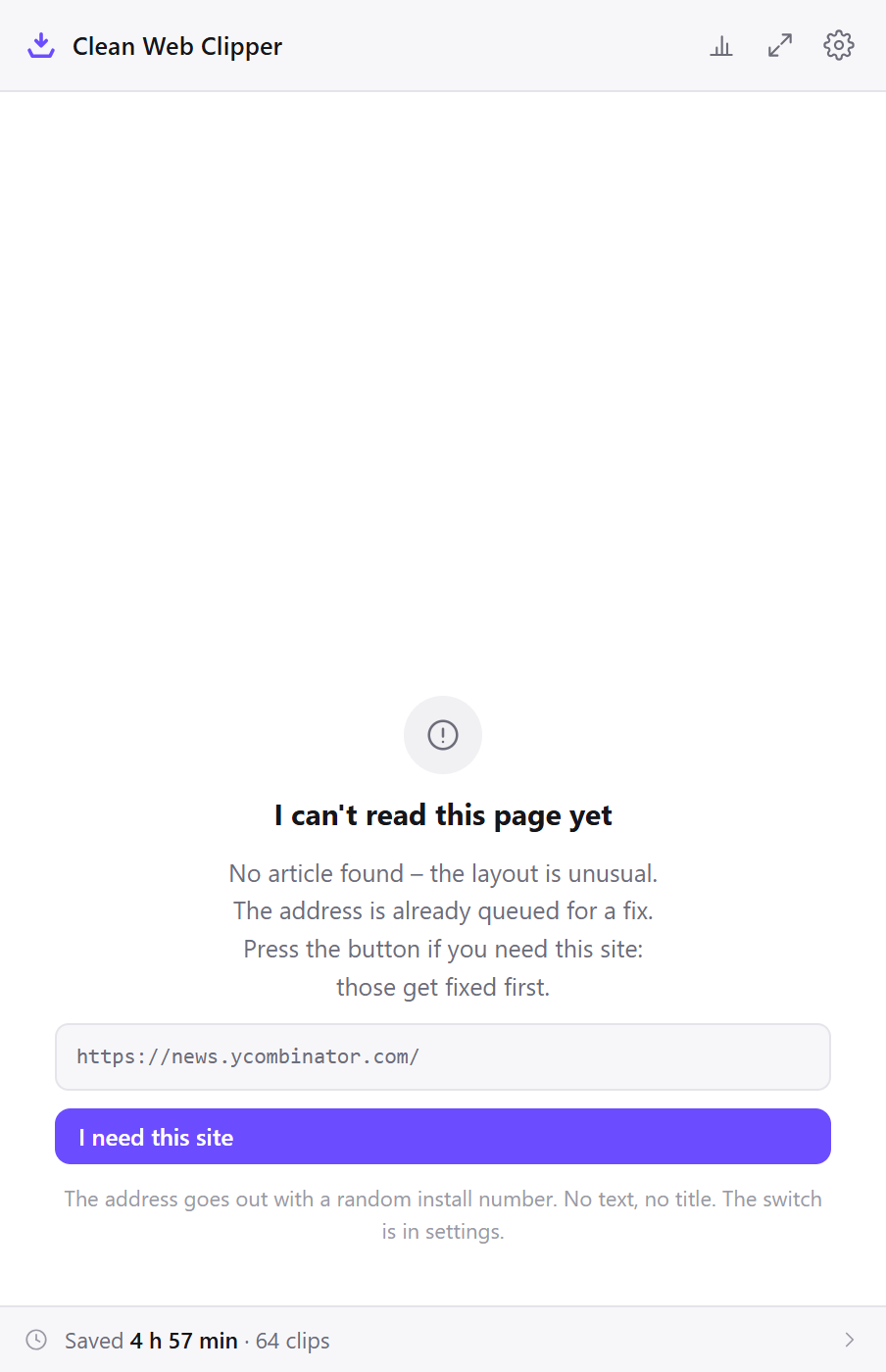
The window says there is no article
The page is a feed, a storefront, a search result or a homepage, and there is no article on it to show. The extension refuses any page where more than about a quarter of the extracted characters sit inside link labels, which is what such pages are often made of. On a site whose front page is a list, open the item first and clip that.
The text will not get any bigger
The clip window follows the browser’s zoom rather than offering a size control of its own, so Ctrl and + is the control. That is deliberate – a separate size setting in one window would be one more place your preference has to be repeated. For full control over type, spacing and voice, save the file and open it in your own reading tool.
My screen reader announces unlabelled images
The alt text comes across when the page provides it and is empty when the page does not. The extension never generates a description, because a guessed description read out as fact is worse than silence. Where a site is consistently bad at this, set images to “skip” for that site and they will not appear in the clip at all.
The page keeps interrupting even with the window open
The clip window runs no page scripts, but the tab behind it is still a live page, and its video, its timers and its notifications carry on. Reading from the saved file, rather than from the window in front of the page, is the way to leave the original behind entirely.
What does Clean Web Clipper not replace for a screen reader user?
The extension does not read anything aloud and it is not a screen reader – it produces clean text for the tool you already use. It does not restyle the site itself – the original page sits untouched behind the window. Text size follows your browser’s zoom rather than a control of its own.
On a page with no article body (a storefront, a search result, some feeds) there is nothing to show, and the extension often says so instead of listing links.
What does the reading view keep?
Does the reading view keep links? Yes, as working links. Images are shown too, or omitted if you have set images to “skip”.
Can I make the text larger?
Does it read the page aloud?
Can I use it with the keyboard alone?
Alt+Shift+M clips without a pointer and without opening a window, and the clip window is ordinary browser UI, reachable by keyboard like any page.Is it free?
What does it not control?
Does heading navigation work inside the saved note? Yes. Heading levels are kept as the article used them, and empty headings, a common artefact of navigation blocks, are dropped. What is left is the article’s own outline, which is what makes moving heading by heading useful again.