Who it is for · ·
Turn a web page into a handout
Clean Web Clipper turns a web page into a handout: the article text with the source URL kept inside the file, and almost none of the site’s menus, consent bar or adverts that a straight browser print would carry onto the page. Attribution then takes no extra work.
Where these numbers come from: the benchmark, with engine versions and dates
What does the browser actually print?
You find the right explanation, press print, and the preview shows three pages: navigation on the first, the text you wanted on the second, a footer of links on the third, and an advert somewhere in the middle. Print stylesheets are the first thing a site stops maintaining, and the ones that survive are tuned to the site’s idea of a printed page rather than yours.
Copying into a document is not much better. The formatting arrives and fights your template, images come in at the wrong size, and the source URL, the one thing students actually need, is lost in the paste. Every reading repeats that layout work, which you never planned to do.
The following September the link is dead. Teaching is built on reuse: the same explanation, the same exercise, adapted for a different group, and a lesson plan made of links quietly stops working over the summer, page by page, with no warning that it has. Material behind a school subscription is worse again – it opens for you on the staff network and not for a pupil at home. A .md file in the folder for that topic opens next year, on any machine, with nothing installed.
What do you hand out instead?
- A print button that prints the clip, not the page around it.
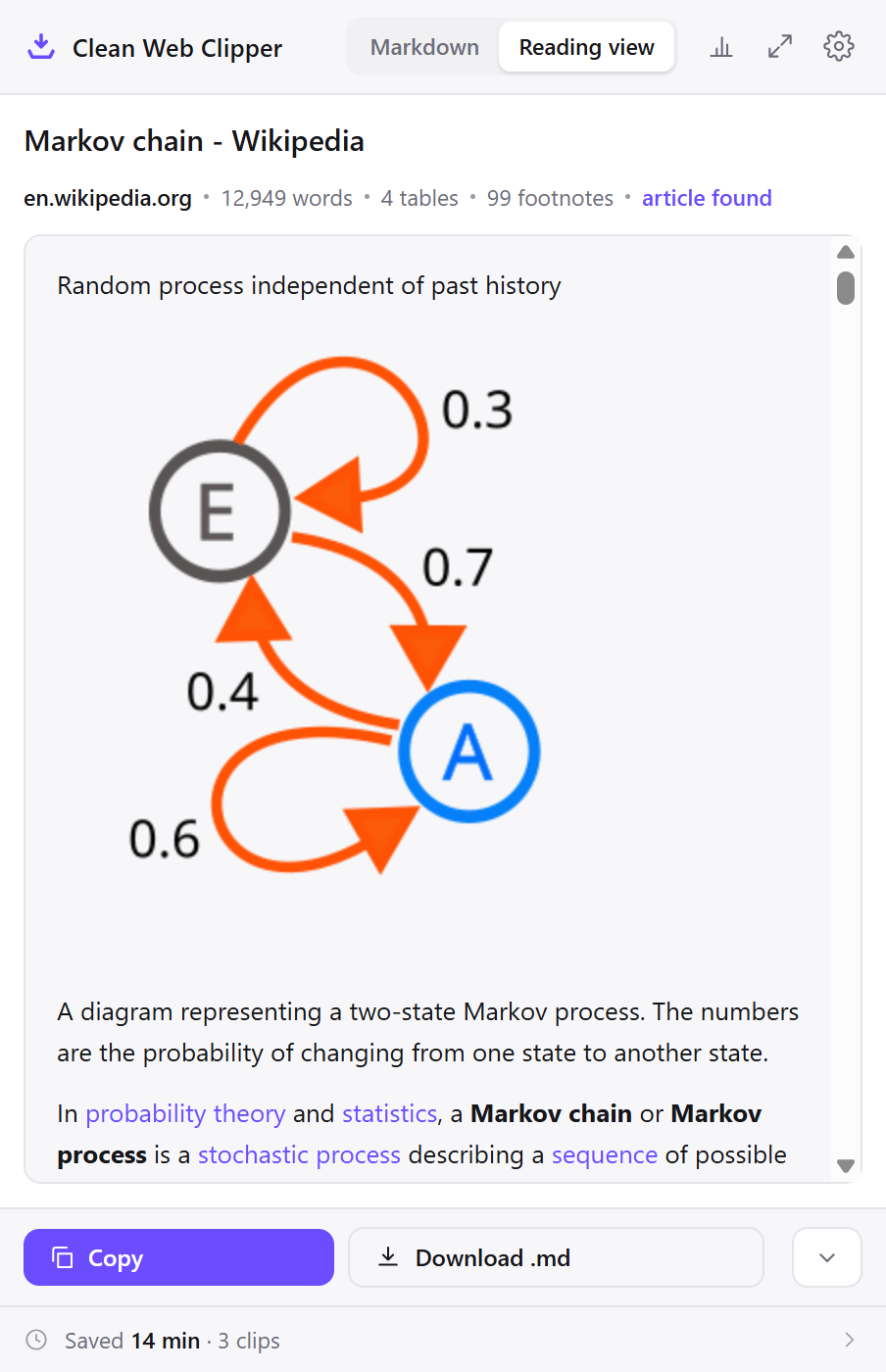
- The reading view shows the result as ordinary text, without Markdown symbols, before you print or save.
- Select one exercise or one definition and clip only that.
- The source URL stays in the note, so the handout can credit where the material came from.
- Images can be dropped globally or for one site, when they would only eat toner.
- The saved file is plain
.mdtext – any student opens it in any editor, with nothing installed, and across 512 measured pages not one leftover HTML tag ended up in it. - Numbered steps keep their nesting, so a procedure stays a procedure rather than becoming a run of paragraphs.
- No clip is uploaded and no account is created. A few usage events do go out, and one switch in settings stops them.
Each of those usage events is listed in the privacy policy.
---
title: "The water cycle"
source: "https://www.noaa.gov/education/resource-collections/freshwater/water-cycle"
extraction: "dom"
---
[Water is essential](https://www.noaa.gov/water/explainers/noaa-water-initiative-vision-and-five-year-plan) to life on Earth. It has three phases (solid, liquid, and gas). In these three phases, water ties together the major parts of the Earth’s climate system — air, clouds, the ocean, lakes, vegetation, [snowpack offsite link](https://nsidc.org/learn/cryosphere-glossary/snowpack), and [glaciers. offsite link](https://nsidc.org/learn/parts-cryosphere/glaciers) The water cycle is often taught as a simple, circular cycle of evaporation, condensation, and precipitation. Although this can be a useful model, the reality of the cycle is much more complicated.

The paths and influences of water through Earth’s ecosystems are extremely complex and not completely understood. NOAA is striving to expand understanding of the water cycle at global to local scales to improve our ability to forecast weather, climate, water resources, and ecosystem health.

## What is the water cycle?

The water cycle describes the continuous movement of water within the Earth and atmosphere. Water moves naturally, but humans also have a big role in the modern water cycle. This is a complex process involving pools and fluxes.

**Pools:** When talking about the water cycle, a pool refers to the many forms and places where water is stored. This includes a "pool" of water like a lake or a swimming "pool," but also refers to things like water vapor in the atmosphere or ice in a glacier.

**Fluxes:** These are the ways that water moves between the pools, including state changes like evaporation or condensation.
…
Set it up for handouts
Set it up once, at the start of a term. The settings that matter are the ones that decide what comes out of the printer and what the folder looks like next September.
- Make a folder for your teaching material with a subfolder per topic,
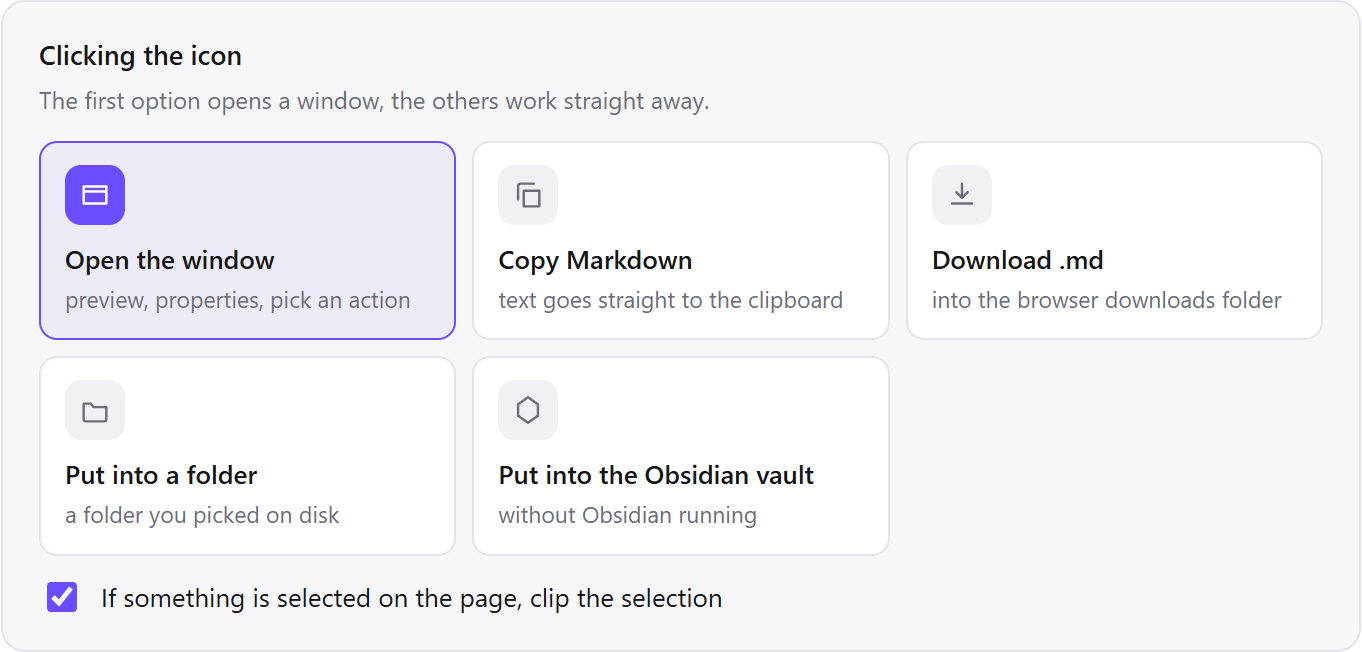
Teaching/photosynthesis, before the first clip. A folder that exists gets filled; a folder that has to be created at the moment of clipping does not. - Open Options from the extension icon and in Where to save set Folder on disk to it. Leave the icon click as the preview window – for handouts the window is the workspace, because the print button lives in it. Print sits in the More actions menu; to put it on the button bar, switch on Print in the settings, under “Buttons in the clip window”.
- Set the filename template to
{date}-{title}.{date}is the publication date where the page declares one and the day you clipped where it does not; there is no separate variable for the clip day, so to tell this year’s capture from last year’s, keep a subfolder per school year. - Set images to skip if the material is going on paper. A page of photographs turns into a page of grey rectangles and a great deal of toner.
- To take one exercise rather than the whole page, select it first and then click the icon. The window opens on the selection, and a strip at the top confirms the selection was taken.
- Check the result in the reading view, which shows the clip as ordinary text with no Markdown symbols. That is roughly what the printed page will look like.
- Print from the window when you want paper and nothing on disk, or save the file when the material is worth having next year. Both come from the same clip.
Which settings suit classroom material?
Two of these differ from what a reader would choose – images off, and the preview window kept rather than bypassed. Both are about what happens on paper.
| Setting | Value | Why this value here |
|---|---|---|
| Icon click | Preview window | The print button and the reading view are both in the window; for handouts it is the workspace |
| Where to save | Folder per topic | Material is reused by topic, not by the week it was found |
| Filename template | {date}-{title} | Dates each file by publication date, or by clip day where the page declares none; a subfolder per year separates the years |
| Images | Skip | Photographs print as grey rectangles and cost toner; the text is what is being read |
| Properties | source on | The handout can credit where the material came from without you looking it up again |
| Selection | Select one exercise, then clip | A single definition or task, without the nine screens around it |
| Per-site rule | Subscription education site → its own subfolder | Material students cannot open at home is worth keeping visibly separate |
Water is essential to life on Earth. It has three phases (solid, liquid, and gas). In these three phases, water ties together the major parts of the Earth’s climate system — air, clouds, the ocean, lakes, vegetation, snowpack offsite link, and glaciers. offsite link The water cycle is often taught as a simple, circular cycle of evaporation, condensation, and precipitation. Although this can be a useful model, the reality of the cycle is much more complicated.

The paths and influences of water through Earth’s ecosystems are extremely complex and not completely understood. NOAA is striving to expand understanding of the water cycle at global to local scales to improve our ability to forecast weather, climate, water resources, and ecosystem health.

What is the water cycle?

The water cycle describes the continuous movement of water within the Earth and atmosphere. Water moves naturally, but humans also have a big role in the modern water cycle. This is a complex process involving pools and fluxes.

Pools: When talking about the water cycle, a pool refers to the many forms and places where water is stored. This includes a "pool" of water like a lake or a swimming "pool," but also refers to things like water vapor in the atmosphere or ice in a glacier.

Fluxes: These are the ways that water moves between the pools, including state changes like evaporation or condensation.
…
See three lessons
Three lessons below show the same shortcut in different classrooms: one explanation printed clean before the lesson, a topic folder that still opens the following September, and a worksheet assembled from three separate selections on one page. None needed a layout tool, a second pass of formatting, or a plugin.
One explanation, on paper, before the lesson
You find an explanation of the water cycle that is pitched right for the group. You clip it, check the reading view, and press print. The printed sheet is the text, the numbered stages and the source line: no navigation, no consent bar, no advert, no third page of footer links.
Printing the page directly would have produced three sheets, two of which are the site. The difference is not aesthetic – it is the number of pages the class is handed and the number of times somebody asks what the box at the top is for.
A topic folder that survives the summer
Everything for a unit is clipped into one folder as you build it: the explanation, two exercises, a glossary page. In September the folder opens exactly as it did in June, while two of the four original links now redirect to a rebranded homepage.
Because each school year has its own subfolder, it is also obvious which materials came from the previous version of a site. Re-clipping one of them creates a second file rather than replacing the first, so the version you already taught from is not lost while you decide.
A worksheet built from three selections
A single page carries eight exercises and you want three. You select the first, clip it, select the second, clip that, and so on. Three short files, each with the source, which you assemble in whatever your school uses for worksheets.
Selection clipping is the part that makes this quick – a strip at the top of the clip window appears whenever the selection was taken, so there is no guessing about what you just saved.
How does it compare to the usual ways to make a handout?
Handouts are usually made by printing the page, copying it into a document, screenshotting it into slides or posting the link, and most departments do all of these. The costs in the table are the ones that show up in the photocopier queue and in September.
| How it is done now | What you get | What it costs |
|---|---|---|
| Print the page from the browser | The material, eventually | Menus, consent bar and footer come too; print stylesheets are the first thing sites stop maintaining |
| Copy into a document | Text you can lay out | Formatting fights the template, images arrive at the wrong size, the URL is lost |
| Screenshot into slides | Exactly what was on screen | Unreadable when projected, no text to enlarge, no source line |
| Put the link on the learning platform | No preparation at all | It works until the page moves, and never works for material behind a staff login |
| Clean Web Clipper | Clean text, printable or saved, with the source in it | No worksheet layout, no answer boxes, and it does not check copyright for you |
What happens when the handout is not right?
Four causes explain most handout problems: the browser printed the page instead of the clip window, images were set to skip or the machine was offline, the material sits behind a subscription pupils cannot open at home, or the page was an interactive activity with no article body at all.
The print still has the site’s menus on it
Site menus on a printout mean the browser printed the page rather than the clip. The print button inside the clip window prints the cleaned text; the browser’s own print command, and Ctrl+P on the page behind, print the page as the site laid it out. If the window is open and the text in it looks right, print from the window.
The diagrams did not come across
Images are links to the original site rather than files, so they print only if the machine is online and the site still serves them – and not at all when images are set to “skip”. For material whose content is the diagram, keep the original page open alongside, or save the picture separately – the extension downloads no binary assets of any kind.
The material is behind our subscription and pupils cannot open it
The clip works – the extension reads the page your browser rendered after your login – but that does not change what the licence permits. Whether a class may be given a copy is a question for your institution’s agreement with the publisher, and the answer is the same as it would be for a photocopy.
The interactive activity clipped as nothing
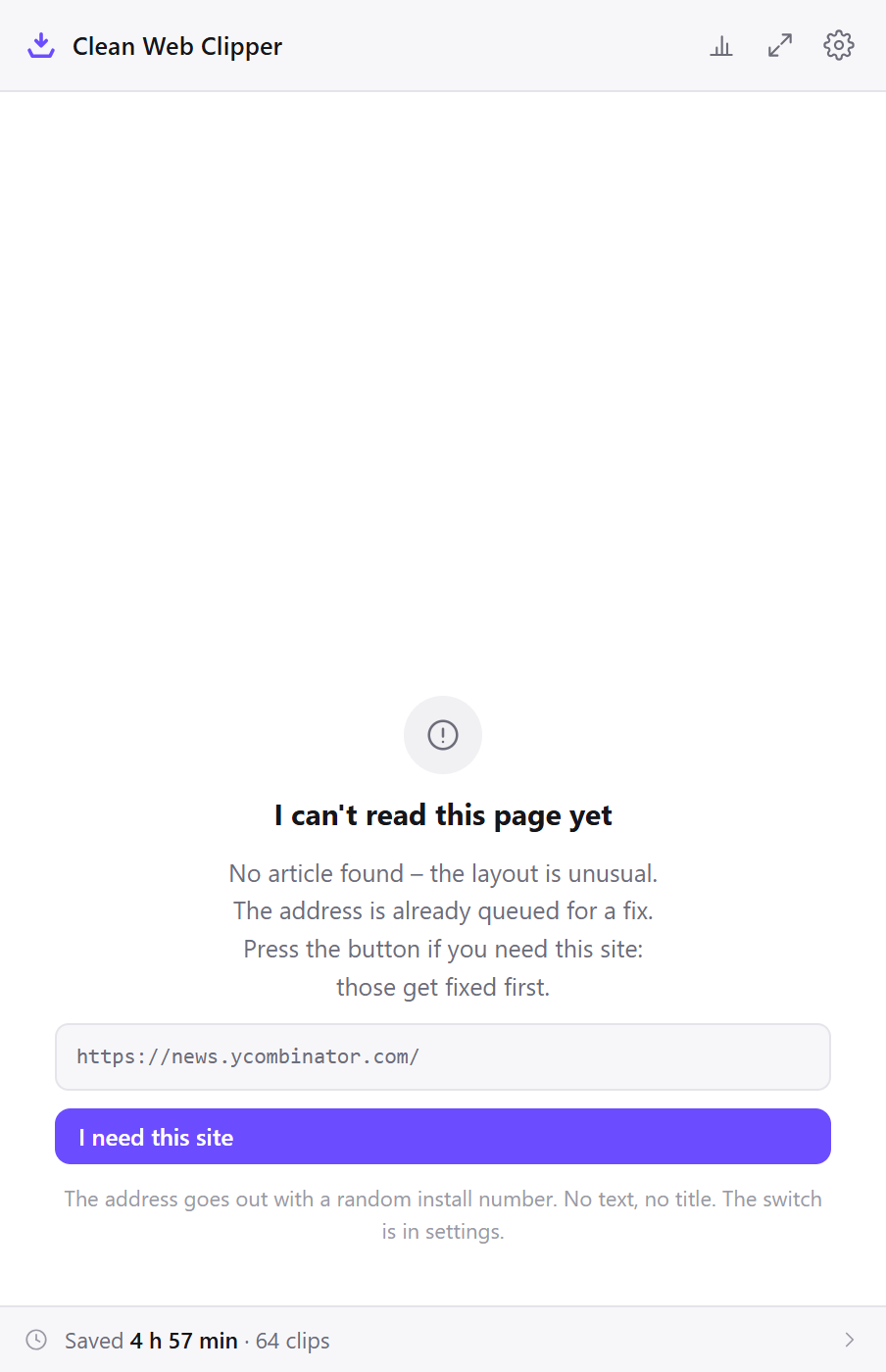
Simulations, embedded quizzes and video players are not text: they are widgets, usually in a separate embedded document, and there is no article body to extract. The extension will report “no article” rather than returning the surrounding page furniture. Clip the accompanying explanation instead, and keep the activity as a link.
What does Clean Web Clipper not do for a handout?
The extension does not lay out a worksheet: no boxes, no answer lines, no branding. It does not download images, so a page whose content is pictures of diagrams gives you links rather than files. It does not check copyright for you; what you may reproduce for a class is a question for your institution’s rules. And it clips one page at a time.
You get clean text, and the layout is yours to make.
What does a handout look like?
Can I print without saving a file? Yes. The Print button in the clip window opens a print dialogue with the cleaned text, and nothing is written to disk. It is in the More actions menu; to keep it on the button bar, switch it on in the settings, under “Buttons in the clip window”.
Will students need the extension to read the file?
.md text file, readable in any editor, and it prints as ordinary text.Can I remove the images?
Does it work on the subscription education sites we pay for?
Is there a cost for classroom use?
What are the rules and limits at school?
May I upload a clipped page to our learning platform? Uploading depends on the source, not on the tool. Clipping is copying, and what a school may reproduce or redistribute is governed by the site’s terms and by your national education copyright rules exactly as it would be for a photocopy. The extension keeps the source URL in the file, which at least makes the question easy to answer.